Fusion Reaction Tube Tray Drawers Removal and Replacement

|
Note—A Firmware Installation procedure must be performed when replacing a module or PCB. |
Parts and Materials Required
- FSE Tool Kit
- Bench Top Pads
- Reaction Tube Tray Drawer
Time Required
- 30 Minutes
Reaction Tube Tray Drawers Removal Procedure
- Put on proper PPE.
- Remove all Cap & Vial Trays.
- Shut down the system and PC.
- Move the Pipettor arms to the left & rear of the system to prevent any accidental damage.
- Remove the Front Panel.
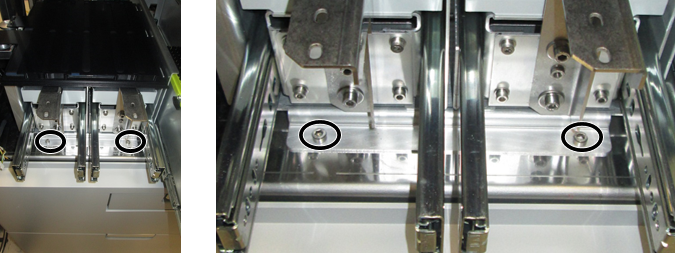
Refer to the Front Panel Removal and Replacement procedure. - Using a 4mm hex driver,
 remove the 2 front screws that secure the Reaction Tube Tray drawers.
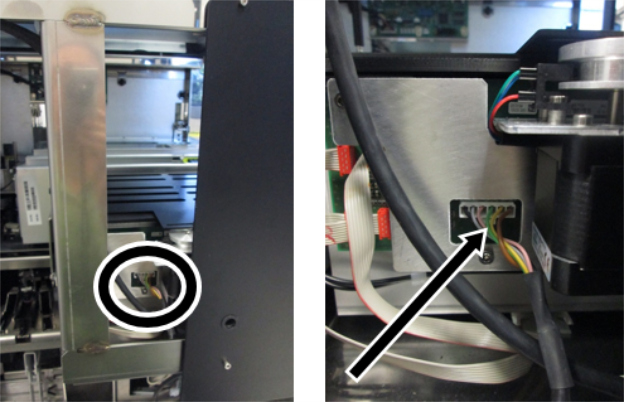
 - Disconnect the CAN cable connector from the Tube Tray PCB found on the left side of the drawer.
- Gently slide the Tube Tray Drawers a few inches towards the front of the system.
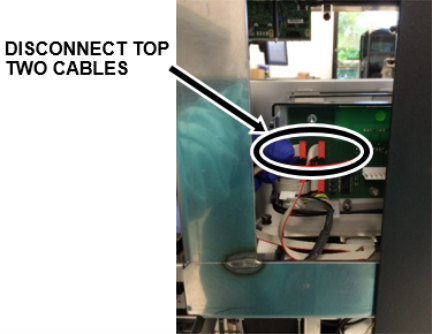
This will expose the drawer’s flex cable connectors on the left hand side of the module.
Carefully mark the top two cables to ensure correct cable connection during reinstallation.
Carefullydisconnect the top two flex cables from the PCB. - Remove the Tube Tray Drawers by sliding the module towards the front of the system. Place the module on a sterile benchtop pad.
Reaction Tube Tray Drawers Replacement Procedure
- Reverse the Removal Procedure.
- Replace the Front Panel.
Refer to the Front Panel Removal and Replacement procedure.
Verification
- Power on the system and PC.
- Through Service Software, verify that all the Front Cover LEDs and drawer locks are working properly.
- Load firmware to the new Tube Tray Drawer module.
Refer to Panther Fusion System Installation > Run Instrument Setup (Fusion). - Check the Shutter teaching.
Refer to Reaction Tube Tray Shutter Teaching. - Teach the Fusion Pipettor (right, or front) to the Tube Tray Drawer.
Refer to Service Procedures > Panther Fusion System Pipettor Teaching. - Perform a Sidecar Pipettor OQ Test.
Refer to Service Procedures > Side Car Pipettor OQ Test.- Cap & Vial only (uncheck DiTi)
- Check the Report, Initialize and Shutter checkboxes only
- Select the Front left drawer option and enter 112 Cycles. (This will start the test on the front left Tray, then move to the Back right Tray so both drawers are tested).
 button at the top of the page to send feedback, comments, or change requests.