Panther Fusion System Pipettor Teaching

|
Note—Fusion Pipettor Teacher can be run concurrently with Panther Pipettor Teaching. |
- If the System has a Fiber Cleaner Nest installed, ensure that Nest Teaching is enabled.
Nest Cleaning should be enabled by default on System SW v7.2 and above. - Click Fusion Teacher on the Panther Fusion Shield.
Leave the password blank, and click on Log On.The Panther Fusion Teacher Software opens.
Note—If the Fusion Teacher button does not start the software, or is not present on the Shield, then navigate to the C:\Panther\FusionTeacherSoftware\and start theFusionCooapplication.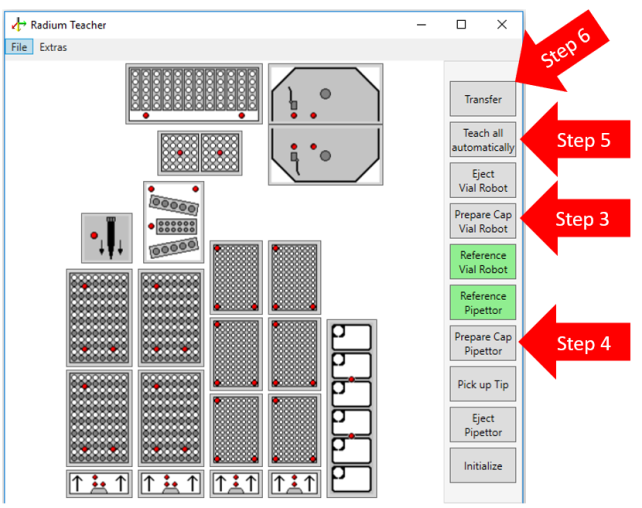
- Click Prepare Cap Vial Robot and follow the instructions (place a Teach Cap on the pipettor).
- Click Prepare Cap Pipettor and follow the instructions (place a Teach Cap on the pipettor).
- Click Teach all automatically to start the autoteach process at all Fusion Module positions.
Note—If the Automatic teaching fails, you may have to manually teach an individual module first and then run Teach all automatically again. You can teach to one individual module only by selecting its symbol on the diagram. - When all positions have been taught, select Transfer to update the firmware, and follow the onscreen instructions to save the positions.
- Close the Panther Fusion Teacher Software.
 button at the top of the page to send feedback, comments, or change requests.