Pipettor Teaching, Automatic (All Modules)
Prerequisites

|
Note—If a Fusion is installed the Reagent Pipettor teaching to the Elution Track MUST be completed. |
|
|
Note— Before starting this Teaching procedure, please save the following files *.coo files found in C:\Panther\Software\PC\Data Panther: Coordinate.coo
|
Procedure
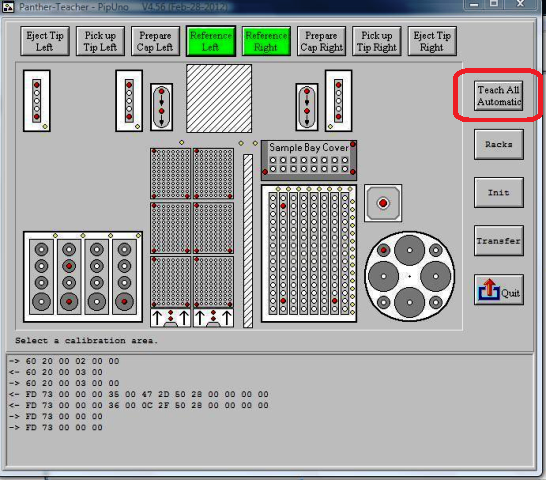
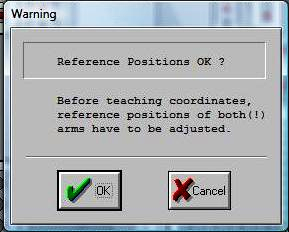
 Click the Teach All Automatic button.
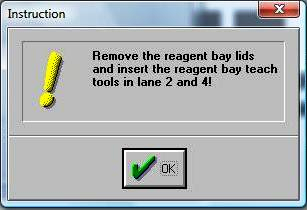
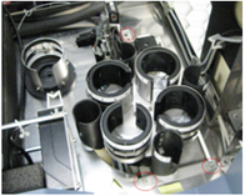
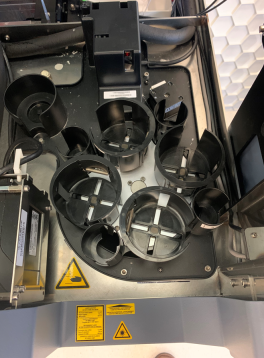
- Remove the Reagent Bay lids, insert the Reagent Bay teach tools in lanes 2 and 4, and click OK.
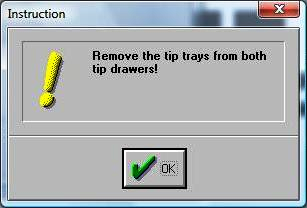
- Remove the Tip Trays from both Tip Drawers and click OK.
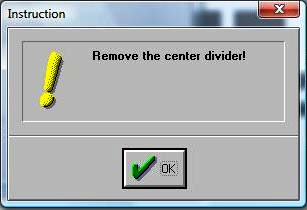
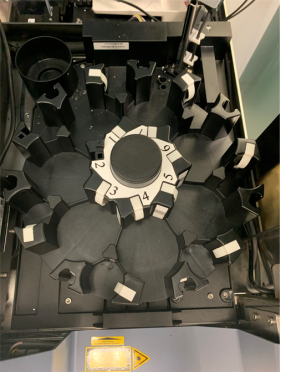
- Remove the center divider and click OK.
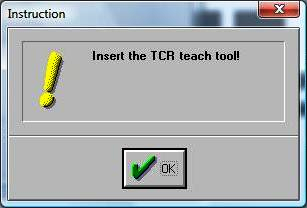
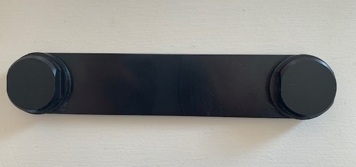
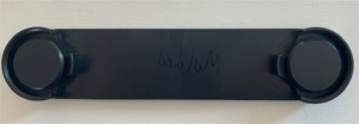
- Insert the TCRTarget capture reagent—An assay-specific reagent added as part of specimen pipetting. teach tool and click OK.
- Click OK.
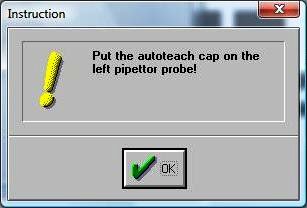
- Place an auto-teach cap on the left Pipettor probe and click OK.
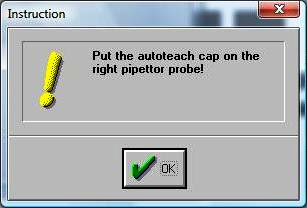
- Place an auto-teach cap on the right Pipettor probe and click OK.
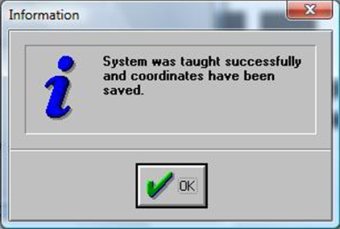
- Allow the Teacher software to complete the process. This takes approximately 20 minutes.An Information dialog appears when the auto-teaching process is complete.
- Click OK.
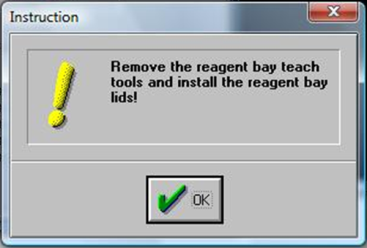
- Remove the Reagent Bay teach tools, install the Reagent Bay lids, and click OK.
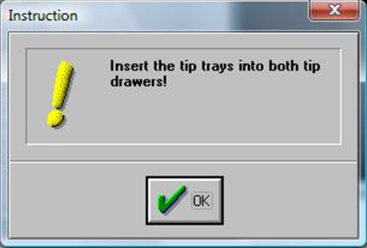
- Insert the Tip Trays into both Tip Drawers and click OK.
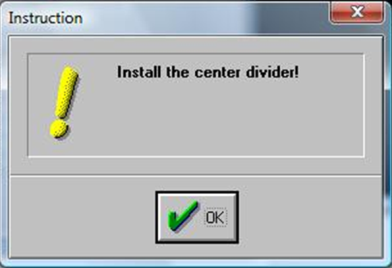
- Insert the center divider and click OK.
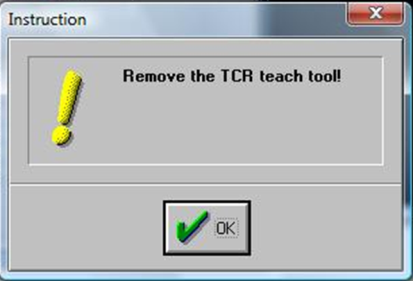
- Remove the TCR teach tool and click OK.
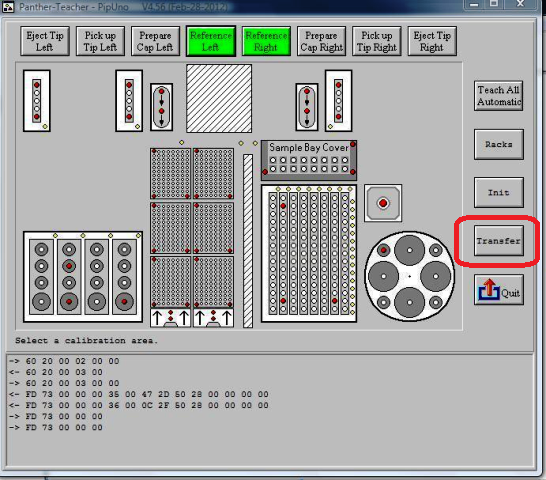
- Click the Transfer button.
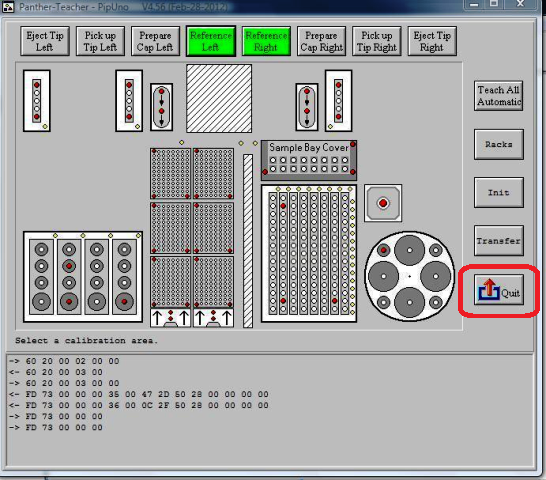
- Click the Quit button and press Cancel to complete the procedure.
- If any errors occur during the process, complete the following steps:
- Select the Init Button to initialize all affected modules.
- Teach the Pipettor to the individual affected module(s), either manually or automatically.
- If individual teaching was successful, select the Transfer Button to save the new coordinates.
- Perform a Teach All Automatic procedure.
- If this is an install, continue to Load Service Software Customer Parameters.
 button at the top of the page to send feedback, comments, or change requests.