Reagent Bay Barcode Reader Verification Procedure
Parts and Materials Required
- Panther System PC
Procedure
- Start up Service Software.
- Navigate to the 2. Front and Loading Units tab.
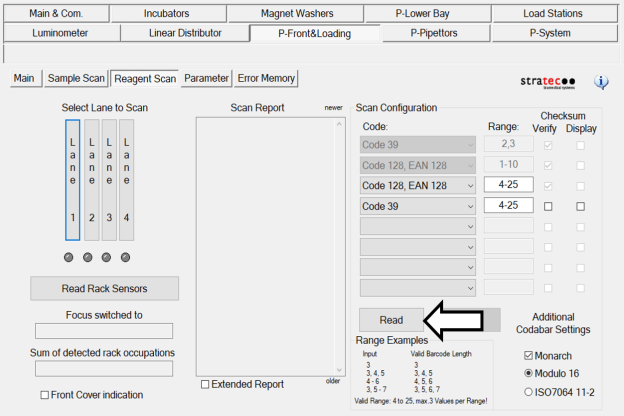
 Under Reagent Scan, press the Read under Scan Configuration and confirm that the scanner is configured as expected.
- Remove all racks from the Reagent Bay.
- Obtain a Reagent Rack and fill the tube positions with reagent bottles from a reagent kit that is typically used by the customer.
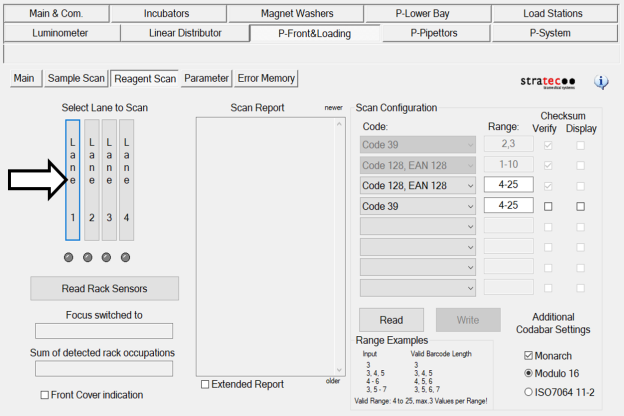
- Under the Select Lane to Scan section, press Lane 1.
- Wait until the Reagent Bay barcode scanner activates and focuses on the lane.
- Open the Reagent Bay door and insert the Reagent Rack into Lane 1. Insert the rack at a speed slightly faster than what would be considered typical.
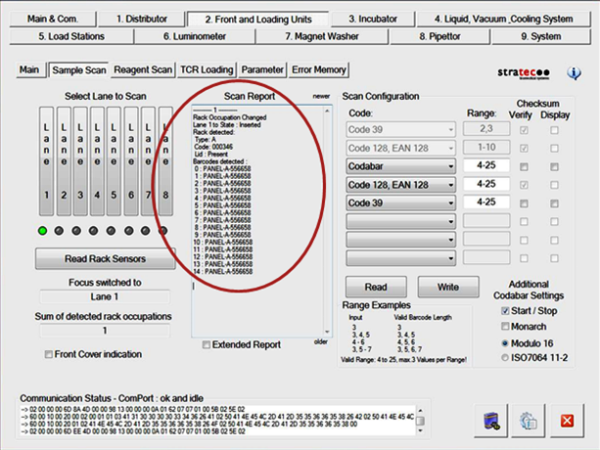
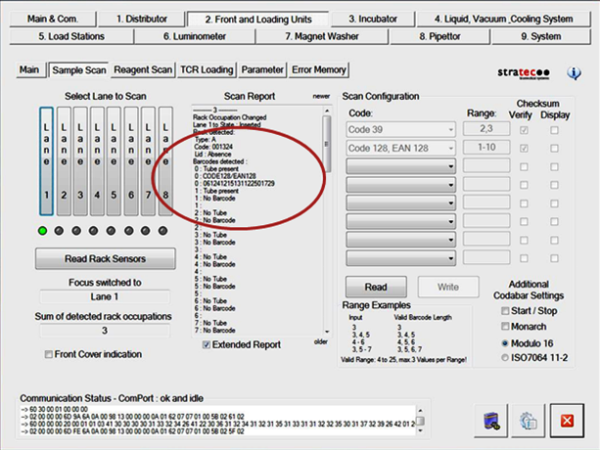
- In the Scan Report box, the module will report all read barcodes from the Reagent Rack.
- Check the scanned barcodes. Note whether any barcodes were unable to be read (a blank space will appear instead of the barcode if it was unable to be read). Check whether any of the barcodes were read incorrectly.
- Check to make sure that the read barcodes are in the proper rack position. Service Software designates the rack positions as positions 0–3.
- Repeat steps 6–8 at least three times at each lane.
- Repeat steps 6–9 on all four lanes of the Reagent Bay.
 button at the top of the page to send feedback, comments, or change requests.