Molded TCR Carousel Home Sensor Removal and Replacement
Parts and Materials Required
- 3 mm ball driver or Allen key
- 4 mm Ball driver or Allen key
- Thin flat head screwdriver
- Molded Carousel Home Sensor
Time Required
Removal Procedure
- Put on proper PPE.
- Power down the Panther System.
- Ensure that the Sample Pipettor is out of the way, so that it will not be damaged.
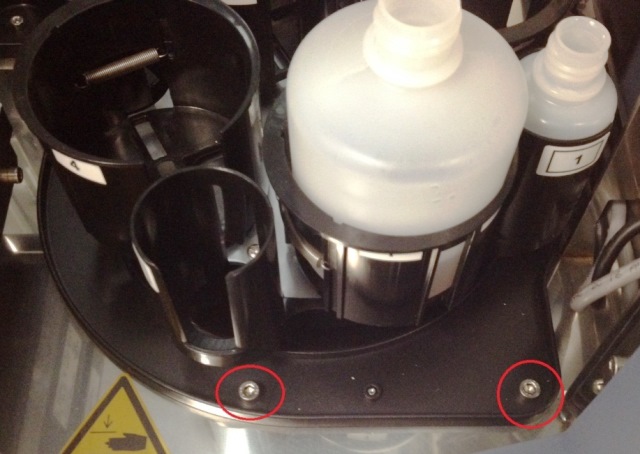
 Using a 4 mm ball driver or Allen key, unscrew the two mounting bolts at the front of the module.
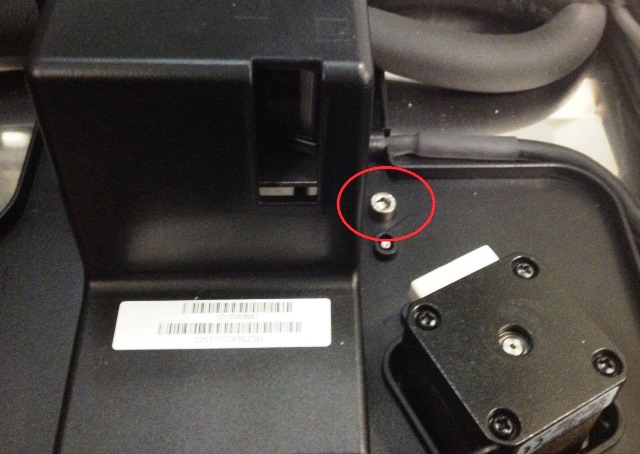
- Using a 4 mm ball driver or Allen key, unscrew the mounting bolt near the scanner housing.
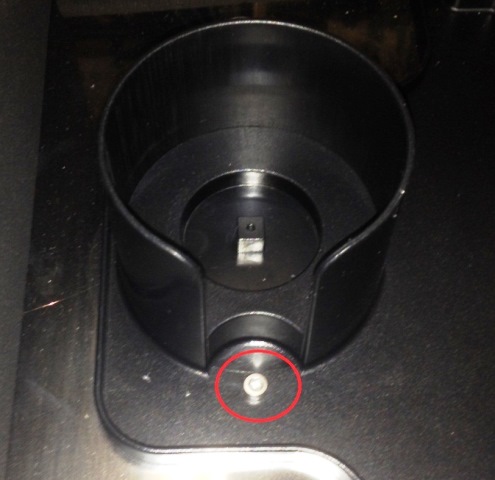
- Using a 3 mm ball driver or Allen key, unscrew the mounting bolt near the Endozime cup.
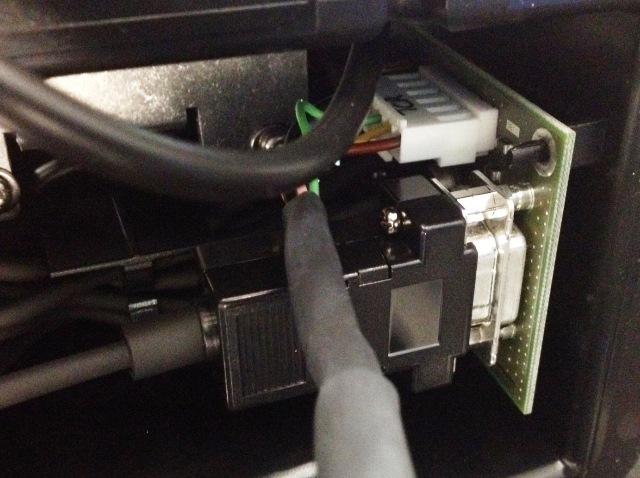
- Locate the TCR Carousel PCB in the scanner housing and unplug the CAN cable that goes from the TCR Carousel to the COP.
- Pull the TCR Carousel out of the system.
- Place the TCR Carousel upside down on a bench top.
- Using a thin flat head screwdriver or you finger, push the tabs away from the home sensor and pull the home sensor out.
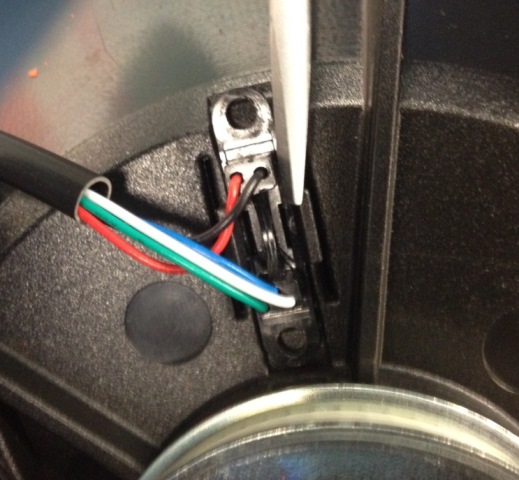
- Follow the removal procedure for the Molded TCR Barcode Scanner in order to disconnect the home sensor cable at the TCR Module PCB.
Replacement Procedure
- Connect the new home sensor to the TCR Module PCB.
- Ensure the cabling is routed as before.
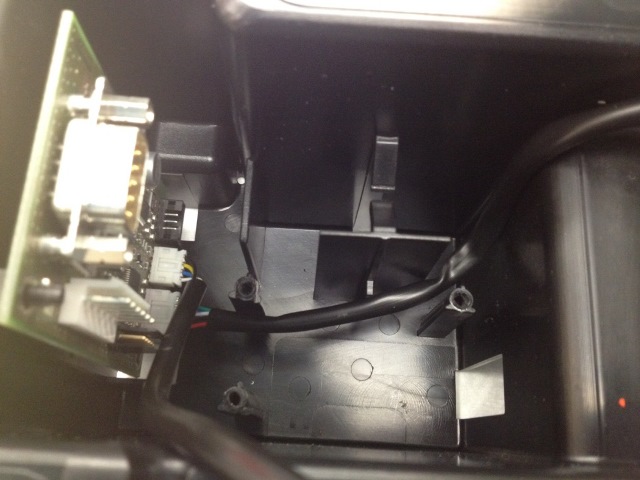
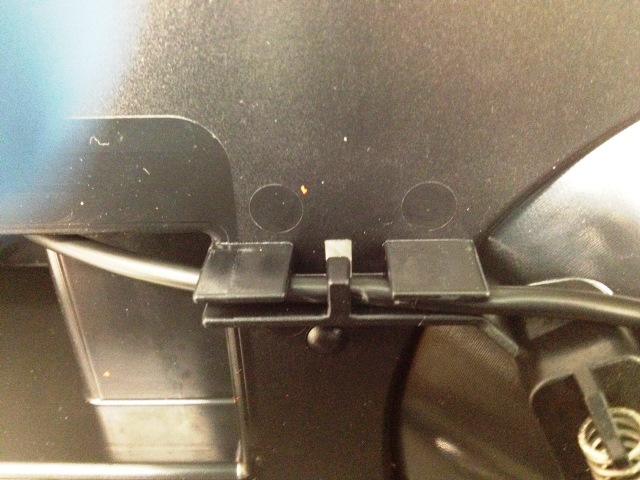
- Follow the replacement procedure for the Molded TCR Barcode Scanner.
- Push the home sensor back into the mount. The orientation does not matter.
- Plug in the CAN cable.
- Reinstall the TCR Module.
Alignment/Calibration
- Teach the Sample Pipettor to the TCR Carousel.
Verification
- Load a TCR bottle with at least 20 mL of saline in slot 1 of the TCR Carousel.
- Start up Service Software.
- Click the Pipettor tab.
- Initialize the Pipettors, TCR Carousel, Tip Drawers, and the Reagent Module.
- Click the Move tab.
- In the Right Arm box, select a tip tray position containing a tip and double-click the position to move the pipettor to that location.
- Click Pick in the Tip section under Right Arm.
- In the Right Arm box, select TCR Carousel and double-click position 1x1 to move the pipettor to this position.
- Click Bar in the LLD section under Right Arm.
- Ensure the tip goes into the bottle without hitting the sides of the bottle opening.
- Go to the Front and Loading Units tab.
- Click TCR Scanning.
- Scan position 1 and ensure you have a successful read.
Click the  button at the top of the page to send feedback, comments, or change requests.