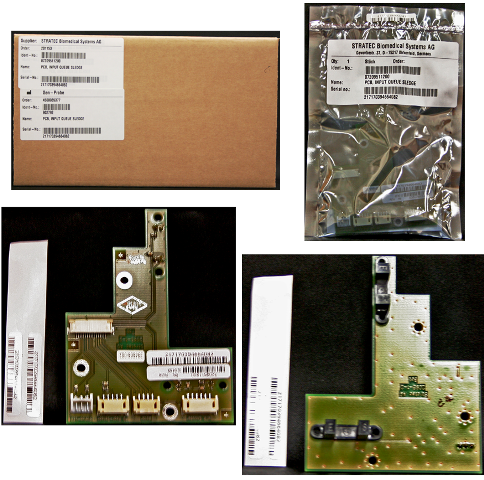
MTU Input Queue Slave PCB Removal and Replacement
Parts and Materials Required
Time Required
- 30 minutes (does not include re-teaching the Distributor)
Removal Procedure
- Put on proper PPE.
- Shutdown the Panther System and PC.
- Remove the Luminometer Injector.
- Carefully open the Service Drawer.
 Open the Input Queue.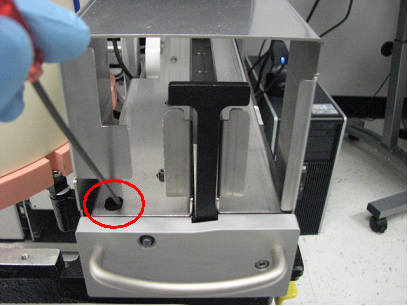
- Locate the slave board at the back end of the MTU Input Queue.
- Disconnect all connectors and remove the three 2.5 mm screws.
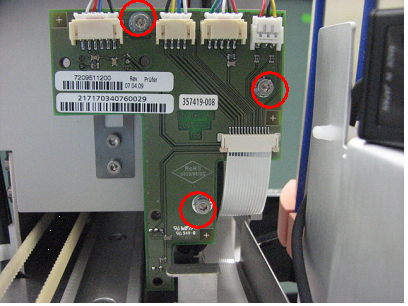
- Remove the MTU Input Queue slave PCB.
Replacement Procedure
- Reverse the removal procedure.
- Verify that all screws are in place.
Verification
- Using Service Software, verify that the drawer sensor reads "Out" when the drawer is open and "In" when the drawer is closed.
- Place one or more MTUs in the Input Queue.
- Press Push MTU. Let the module pack and count the MTUs.
- Press Read to get the sensor readings of the Input Queue. The Drawer sensor should read IN, the Packing Sensor should read OUT, the MTU-Pusher sensor should read IN and the Packing Rear Sensor should read IN.
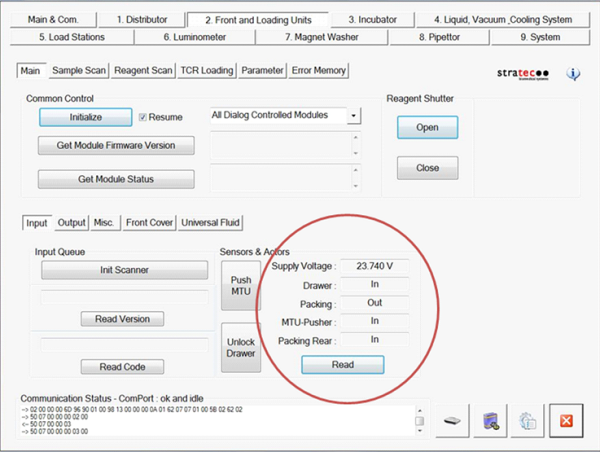
- Press Unlock Drawer. Wait until the drawer unlocks and open the MTU drawer but do not open the drawer.
- Press Read to get the sensor readings of the Input Queue. The Drawer sensor should read IN, the Packing Sensor should read OUT, the MTU-Pusher sensor should read IN and the Packing Rear Sensor should read OUT.
- Open the Input Queue drawer.
- Press Read to get the sensor readings of the Input Queue. The Drawer sensor should read OUT, the Packing Sensor should read OUT, the MTU-Pusher sensor should read IN and the Packing Rear Sensor should read OUT.
- Remove all MTUs from the Input Queue, including the last MTU that has been packed.
- Close the Input Queue Drawer and press Push MTU. Let the module attempt to pack and count MTUs.
- Press Read to get the sensor readings of the Input Queue. The Drawer sensor should read IN, the Packing Sensor should read IN, the MTU-Pusher sensor should read OUT and the Packing Rear Sensor should read IN.
- Perform a System Level Operational Qualification.
Click the  button at the top of the page to send feedback, comments, or change requests.