Imaging the Optiplex XE
Parts and Materials Required
- DELL OPTIPLEX PC—The image is designed specifically for this hardware and will not work with other PC hardware.
- Panther System CD—Workstation Image Deployment Tool
Time Required
- 45 minutes
Procedure
- Power down the Panther system and PC.
- Unplug the network cable from the back of the PC.
- Turn on PC and press F12 on the keyboard when prompted to get to the Boot Options.
The Boot Device Menu screen appears.
If the Boot Device Menu is locked, complete the following procedure to unlock it:
- Tab to highlight the Unlock button.
- Press Enter.
- Enter gpservice in the input field.
- Press Enter.
- Insert Workstation Image Deployment Tool CD into the CD ROM drive.
- Select Onboard or USB CD-ROM Drive on the Boot Device Menu.
- Perform this step and the next step promptly because the following prompt displays for a short time (approximately 5 seconds). Press Enter.
- Press any key when prompted to Press any key to Boot from CD.
A Windows is loading file message screen with a progress bar appears (about 1 minute).
A Starting Windows message screen appears.
- Clear the check box to remove the default location of the image.
- Select Windows Vista operating system.
- Press the Start Recovery Process button.
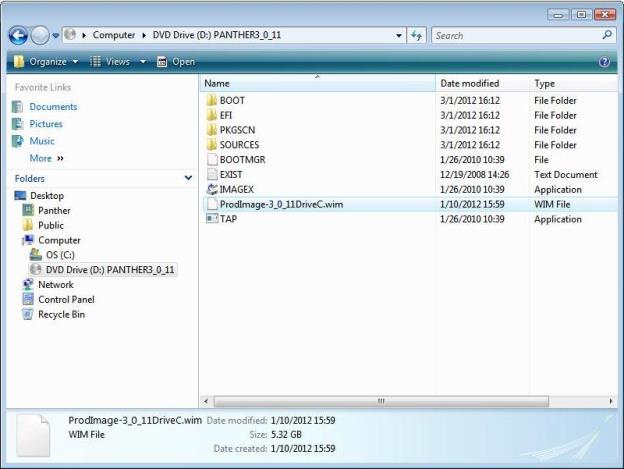
 Select the Product Image file, usually a *.wim file (for example, ProdImage-3_0_11DriveC.wim).
- Select Open.
The system restores the image. This takes approximately 26 minutes to complete.

Note — The elapsed time dialog box shows progress for the first 12 minutes. The Status Progress scroll bar shows the remaining progress. - Select Reboot when the process completes.
- An Installing device driver software message appears in the lower right corner of the screen.
- A Microsoft Windows dialog box appears indicating, You must restart your computer to apply these changes.
- Select Restart Now.
- Verify that the image was installed correctly.
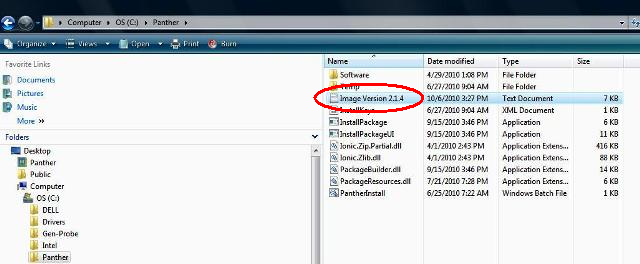
- Using Windows Explorer, navigate to C:\Panther\ and identify the version file.
- Verify that the Image Version is X.X.X ( for example, Image Version 2.1.4)
- Remove the Workstation Image Deployment Tool CD.
- Proceed to the next step, BIOS Configuration Procedure.
|
|
Note — After imaging a Panther System PC a Windows Activation Key may be required to fully install Windows. If a Windows Activation screen appears after restarting the PC, complete the Windows Activation on the Panther System PC procedure. |
 button at the top of the page to send feedback, comments, or change requests.