Configuring the Sample Bay Barcode Reader
Parts and Materials Required
- Panther System PC
Time Required
- 10 minutes
Procedure
- Open Service Software.
- For the following steps, refer to the preferred customer configuration obtained during the Site Assessment or, if replacing a scanner, from evaluating the previous scanner configuration (if possible).
- Navigate to the 2. Front and Loading Units tab.
 Under Sample Scan, press the Read under Scan Configuration. If installing a new scanner, this will display the default configuration..
- For the following steps do not remove the Code 128, EAN 128 configuration (4–25 digits) from the barcode configuration, even if the customer does not use this format. The format is required to read any controls or calibrators.
- If additional barcode formats are required, click the first blank pull-down box. The box will display the available barcode formats. Choose the appropriate format.

WARNING—Both EAN 8/13 and UPCA/UPCE configurations should not be enabled at the same time. - Fill the digit range box. For most barcode formats, choose 4–25 digits. For 2/5 Interleaved, choose 4–24 (2/5 Interleaved requires even numbers of digits). EAN 8/13 and UPCA, UPCE have fixed mandatory range lengths.
Code Range Checksum Verify Checksum Display Comments Code 39 2, 3 Yes No Mandatory type—Enforced by Service Software Code 128, EAN 128 1–10 Yes No Mandatory type—Enforced by Service Software Code 128, EAN 128 4–25 Yes No Required—Must be selected to read Controls & Calibrators 2/5 Interleaved 4–24 Yes/No* Yes/No* Activate only if needed Code 39 4–25 Yes/No* Yes/No* Activate only if needed Code 93 1–10 Yes Yes/No* Activate only if needed, EAN8/13 must be activated in order to use Code 93. EAN 8/13 1–10 Yes Yes/No* Activate only if needed Codabar 1–10 Yes/No* Yes/No* Activate only if needed UPCA, UPCE 1–10 Yes Yes/No* Activate only if needed - Choose whether the customer uses a checksum/check-digit with this barcode format. Note that this option is not available for Code 128/EAN 128, Code 93, EAN 8/13 and UPCA/UPCE as they have enforced check digits.
- If a checksum is to be verified, choose whether to display the checksum. Check this box unless otherwise specified.
- If the configuration includes a CODABAR format, verify that the additional CODABAR settings are configured according to what was found during the Site Assessment or from evaluation of the previous scanner configuration.
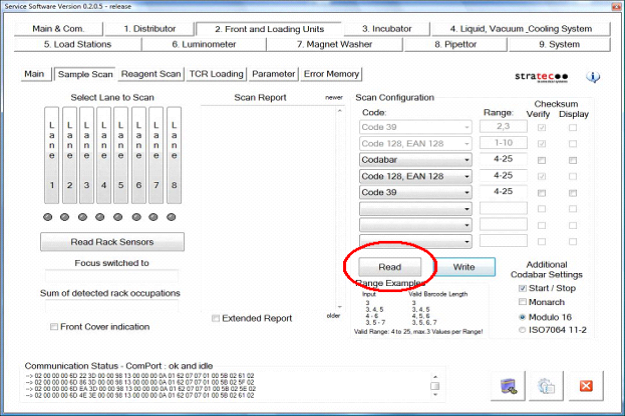
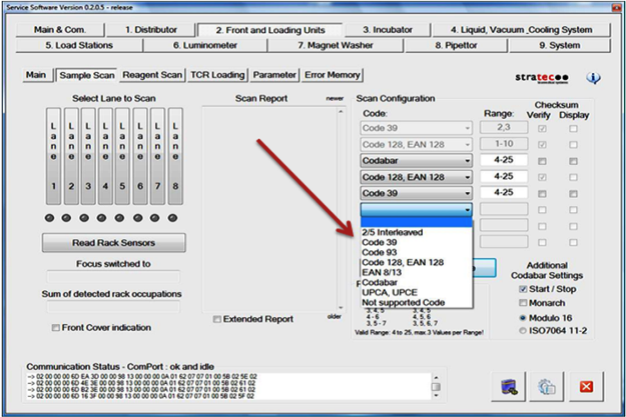
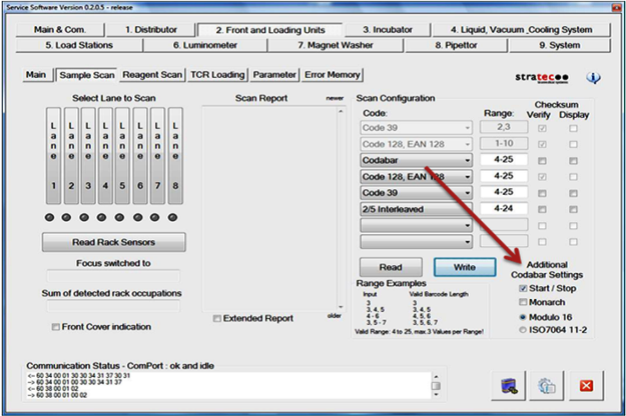
- To remove any of the barcode formats, click the pull-down box for the format you wish to remove. The box will display the available barcode formats. Choose the blank space above the 2/5 Interleaved format.
- Carefully verify all the formats that are displayed in the Scan Configuration box. Make sure that this matches the preferred configuration. Check the digit ranges and whether checksums are to be verified and displayed (if necessary).
- Click Write to write this configuration to the barcode scanner's firmware.
- If this is an installation, continue to Install Front Shield.
 button at the top of the page to send feedback, comments, or change requests.