Purging Results Manually
This procedure provides instructions for manually purging results from the Panther database so that the number of results is limited to 3 months (preferable) or a range of results acceptable to the customer. This procedure should be included as part of the 1Yr Preventative Maintenance Procedure.
- Database backup by the Field Service Engineer should be performed prior to the deletion of any customer data in the event that a mistake occurs during data deletion and the original database needs to be restored.
- Operators are also instructed to back up the database quarterly or as desired in order to retain a copy of all records, as specified in the Panther System Operator's Manual.
Time Required
- 20 minutes
Procedure
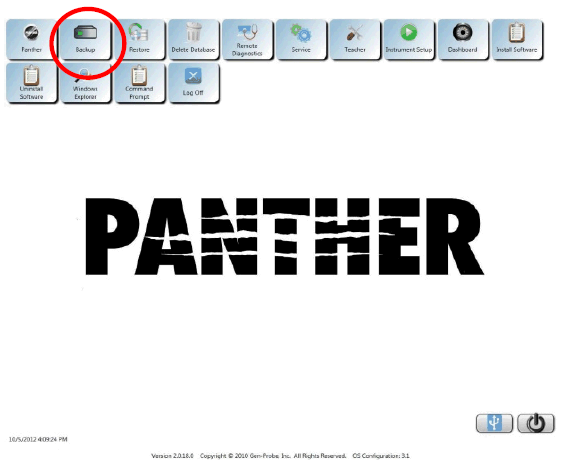
- Navigate to the Panther FSE Shield.
 From the Panther Shield, select the Backup button and save the database to the PC.
- Launch the Panther Main AssayProcedures required to prepare and perform a specific test. In the context of this document, assay refers exclusively to a Hologic test, such as Aptima Combo or Ultrio. software (refer to the Panther System Operator's Manual).
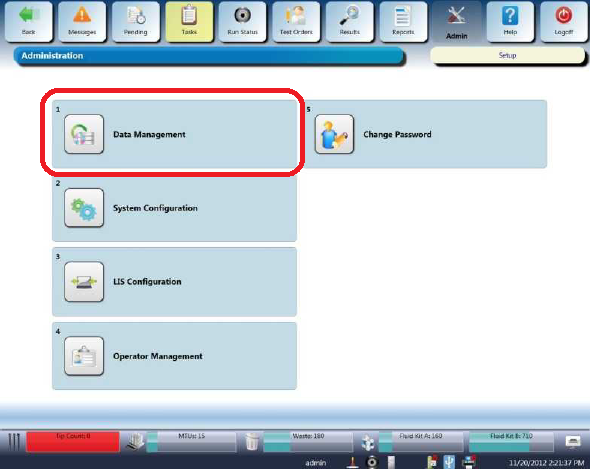
- Navigate to the Admin tab.
- Select Data Management.
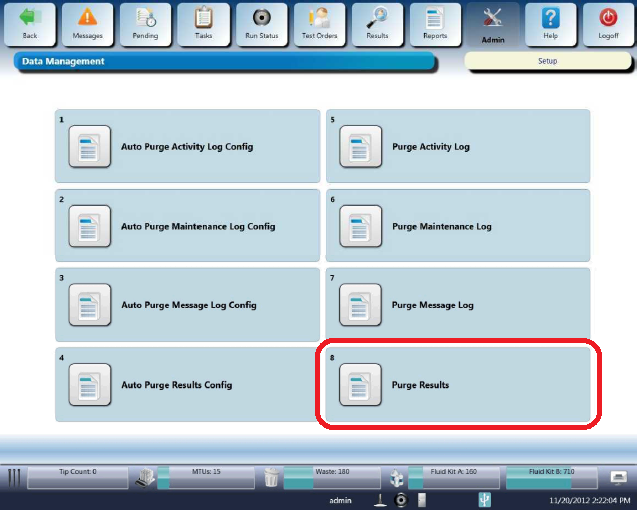
- From the Data Management screen, select Purge Results.
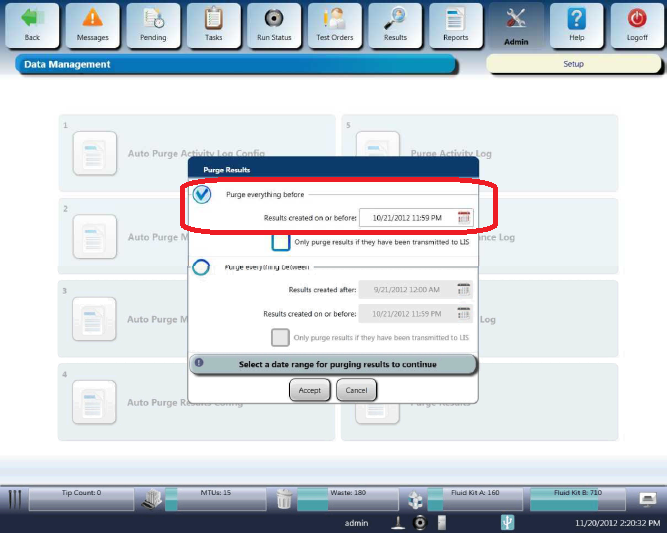
- Verify the Purge everything before option is selected and select a date acceptable to the customer .
- Select Accept and verify all results were removed.
Verification
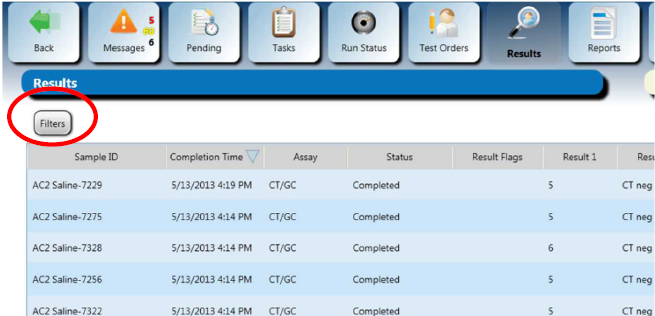
- Navigate to the Results tab.
- Select Filter.
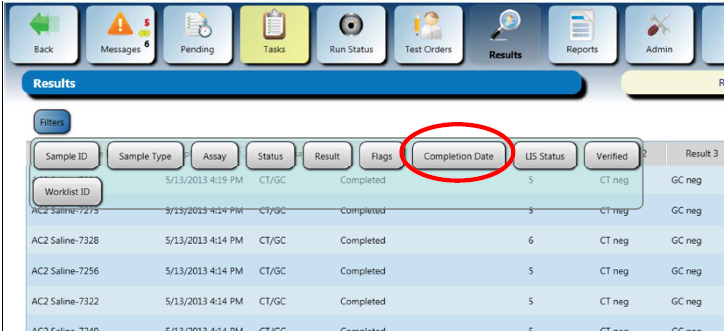
- From the expanded Filter menu, select Completion Data.
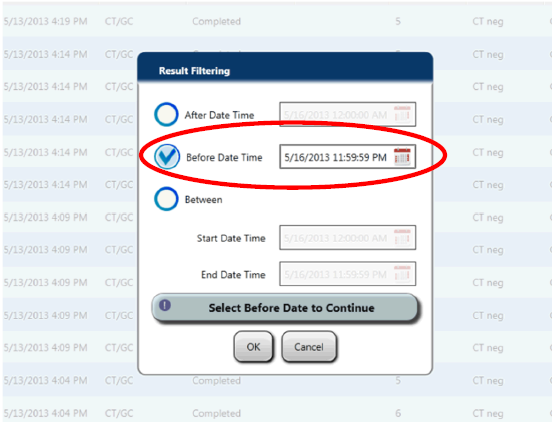
- From the Result Filtering window, check the Before Date Time option and select the same date as in step 7 of the procedure.
- Select OK.
- Verify that no results are present on the Results screen.
 button at the top of the page to send feedback, comments, or change requests.