Database Backup and Restore
Parts and Materials Required
Time Required
- 15 minutes
Procedure
Backup Database
- Log in to the
 Panther FSE Shield.
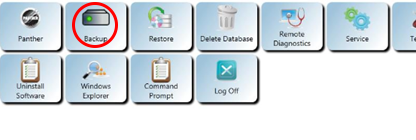
 - Click the Backup button.
- Insert a USB flash drive.
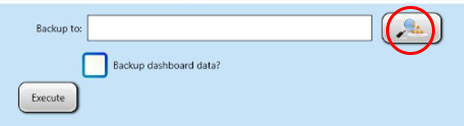
- Select the Browse button (The Magnifying Glass).
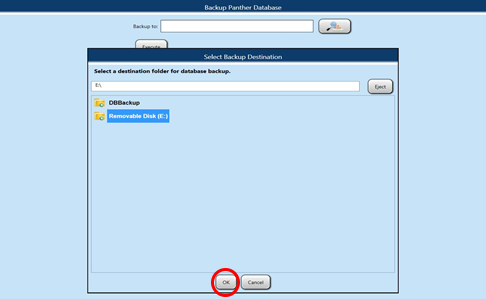
- Browse to “Removable Disk (E\:)”.
- Select OK.
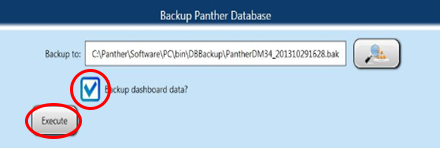
- Select the Backup Dashboard data checkbox.
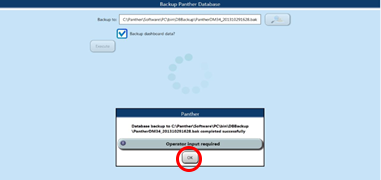
- Select Execute.
- Select OK when database backup has completed.
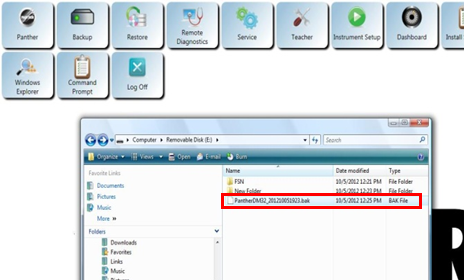
- In Windows Explorer, browse to the USB flash drive and verify the .bak file was created.
Restore Database

|
Note—Only Administrators should perform this task. |
- Login to the Panther FSE Shield.
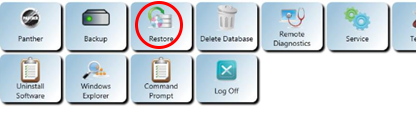
- Click the Restore button.
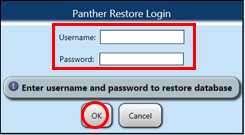
- Enter the Username (admin) and Password (pantherx).
- Click OK.
|
|
Note—The system does not require a User Name and Password if the database was corrupted. |
- The Restore PANTHER Database screen opens.
- Insert the USB flash drive.
- Select the Browse button.
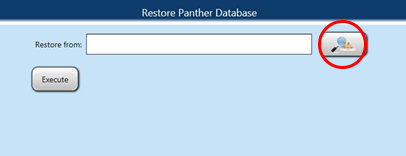
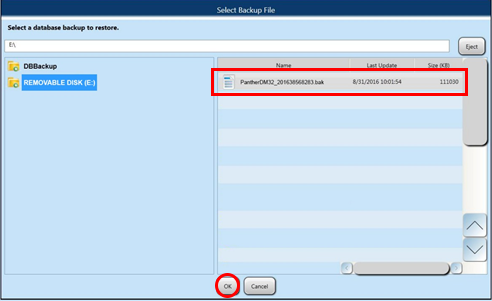
- Select the backup database file from “Removable Disk (E\:)". Select OK.
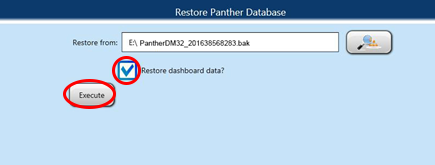
- Check the Restore dashboard data check box, and select Execute.
- If the Restore process is successful, skip to Step 13. If the Restore process is unsuccessful proceed to Step 11
- If the Restore process is unsuccessful, copy the Database backup from the USB drive to C:\Panther\Software\PC\Bin\DBBackup
- Then return to Step 7 and attempt a Restore from C:\Panther\Software\PC\Bin\DBBackup
- Click OK in the Confirm Restore window.
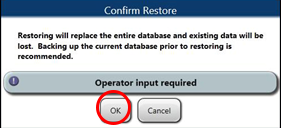
- When complete, click OK to return to the FSE Shield.
- After restoration the FSE should reconcile all consumable inventories, empty waste, and throw away any used reagents kits.
 button at the top of the page to send feedback, comments, or change requests.