USB/Memory Stick Requirements
This procedure serves to provide guidance to Field Service personnel with the correct USB/Memory stick requirements to be used on the Panther Systems.
Procedure
- System Database Requirements – Backup, Download, Save:
- Always ensure the device is virus free and is not used on public or home computers. Only Hologic devices (e.g. laptop, iPad) should be used to download data from device.
- Device must be NTFS (New Technology File System) formatted. If device not preformatted with NTFS, then format device to NTFS. Do NOT format in FAT32 or exFAT.
- Must be minimum of 16GB of memory.
- Must be void of any 3rd party pre-loaded software/firmware on the device. These devices are not permitted since they allow executable code to run after inserting into the PC.
- The device must be dedicated for use with the Panther, Tigris, Tomcat, DTS, and eSAS Systems. Do not use the device with other systems.
- This NTFS formatted device can be used to save general documents (Step 2 below). However, NTFS formatted devices are not compatible with iOS devices (e.g. IPads) and thus not ideal for saving to the iOS device.
- Saving general document requirements (e.g. OQs/Flashcheck/.pdfs/.csv) that will be attached to the Customer Relationship Management (CRM) System:
- Always ensure the device is virus free and is not used on public or home computers. Only Hologic devices (e.g. laptop, iPad) should be used to download data from device.
- Device can be FAT32 or exFAT formatted.
- Must be void of any 3rd party pre-loaded software/firmware on the device. These devices are not permitted since they allow executable code to run after inserting into the PC.
- The device must be dedicated for use with the Panther, Tigris, Tomcat, DTS, and eSAS Systems. Do not use the device with other systems.
- FAT32 or exFAT formatted devices are compatible with iOS devices (e.g. IPads) and are preferred for saving documents to CRM.
Verification
- Insert USB device.

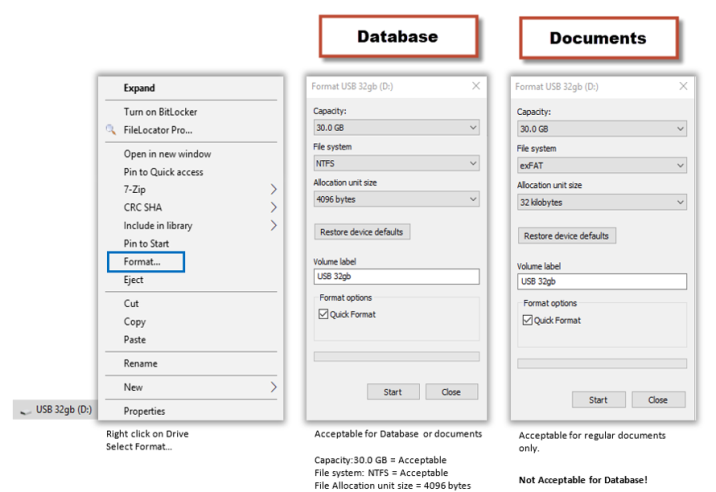
Note—32GB USB device used as an example only below. - Right click on USB device, click on Format.
- Verify for applicable USB device:
- Database/Documents USB device:
- Verify NTFS and file allocation set to 4096 bytes.
- If formatting is correct, select Close.
- If formatting is incorrect, correct changes and select Start.
- Documents USB device:
- Verify FAT32 or exFAT and file allocation is set to 32 kilobytes.
- If formatting is correct, select Close.
- If formatting is incorrect, correct changes and select Start.
- Database/Documents USB device:
 button at the top of the page to send feedback, comments, or change requests.