Dashboard - Work Cell Management
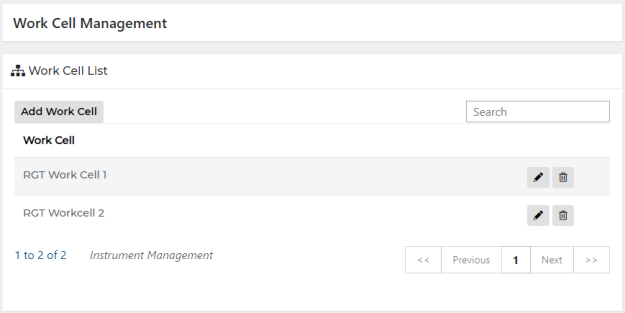
The Work Cell Management screen allows users to add, edit, and delete work cells.
Once an instrument is part of a work cell, groupings can be viewed during creation of a dashboard (see Create Dashboard) to ensure appropriate instruments are selected. Instruments organized by work cells allows users to select applicable instruments during creation of a dashboard.
To access the Work Cell Management screen, select Work Cells on the Administration screen.
 Add Work Cell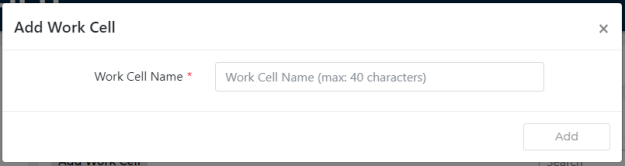
 button at the top of the page to send feedback, comments, or change requests.