Dashboard - Manage Remote Data Access
To view the status of a instrument via a Dashboard Command, users MUST:
acquire an Access Owner and Generate an Access Key from that instrument.

|
Note—Only Panther System Administrators can access the Manage Remote Data Access button. |
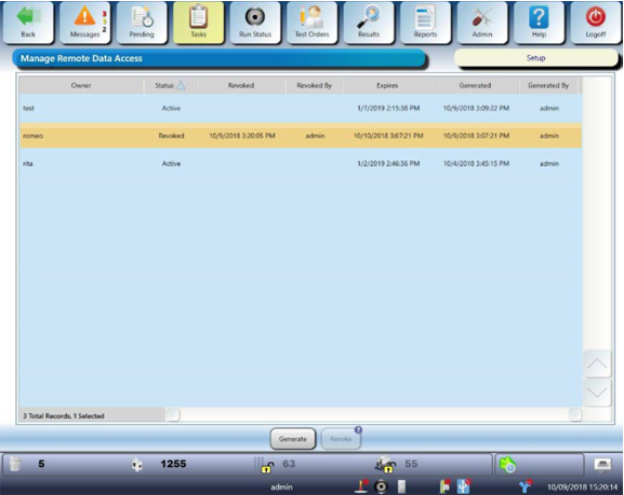
Generate Remote Data Access
- From the Panther GUI, click on Admin
- Select Manage Remote Data Access
- The Manage Remote Data Access window opens. Refer to the “Panther Trax System Operator’s Manual” for detailed instructions.
- Select Generate and enter the owner name.
- Write down the Generated Access Key.
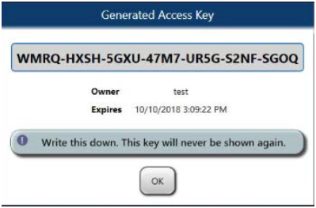
- Select OK or press the Enter key on the virtual keyboard.
The Generate Access window opens. - Select OK to confirm owner name.
The Generate Access window closes and the Generated Access Key window opens. - Use the generated Access Owner and Generated Access Key to add the instrument to Dashboard Command.
Revoke Remote Data Access
|
|
Note—The connection may be temporarily disabled if permanent removal is not desired. See Instrument Management section. |
To permanently remove an instrument from the Dashboard Command:
- Select Manage Remote Data Access on the Administration window.
- Select the appropriate instrument/ owner from the list.
- Select Revoke.
- At Confirmation window, select Yes.
 button at the top of the page to send feedback, comments, or change requests.