MTU Input Queue Barcode Reader Verification Procedure
Parts and Materials Required
- Panther System PC
Procedure
- Start up Service Software.
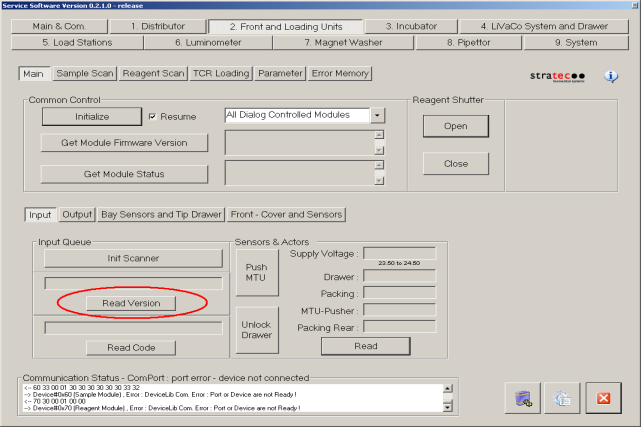
- Navigate to the 2. Front and Loading Units tab.
- On the Main tab, initialize the MTU
 Multi-tube unit—Container used to process tests in the instrument. An MTU contains five separate reaction tubes. The MTU is moved through the instrument by the linear distributor and includes five tiplets for pipettiing to be used in the mag wash station. Input Queue.
 - Press the Read Version button. This will display the firmware version of the MTU Input Queue barcode reader. Verify that the firmware version is as expected.
- Place several MTUs in the MTU Input Queue and close the drawer.
- Open the right side panel of the system. Note the location of the barcode scanner in relation to the Distributor.
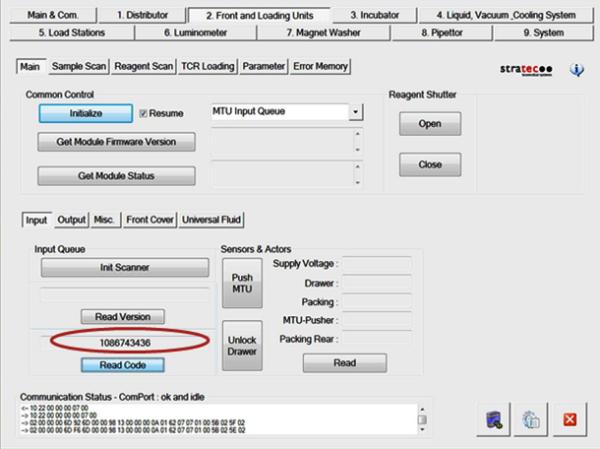
- Press the Read Code button to read an MTU barcode.
- Service Software will ask if you wish to initialize the Distributor. Press Yes if the Distributor has not been Initialized.
- The Distributor will pull an MTU from the MTU Input Queue, place the MTU in front of the barcode scanner, and activate the barcode scanner.
- Note the following:
- Observe the red laser on the MTU barcode label. The laser should be close to the middle of the barcode and not close to the edge of the label. If the laser line is close to the edge of the label, re-align the linear distributor to MTU Input Queue module scanner.
- Service Software will display the read barcode. Note whether Service Software indicates that it was unable to read the barcode.
- Repeat steps 7–10 on at least three more MTUs.
 button at the top of the page to send feedback, comments, or change requests.