Installing the Firewall Wizard
This section describes how to install the Firewall Wizard Software.

|
Note— Screen shots below are for reference ONLY. Your screens may differ. |
Uninstall any previous versions of the Firewall Wizard Software on the FSE laptop prior to installing the new Firewall Wizard Software.
- Close all running applications on the FSE Laptop.
- Download and save the appropriate Firewall Wizard version from Agile or BOX
Check with the relevant System Software TB for BOX address and SHA values. - Unzip the .zip file.
- Double click on setup.exe to launch the Firewall Wizard installer.
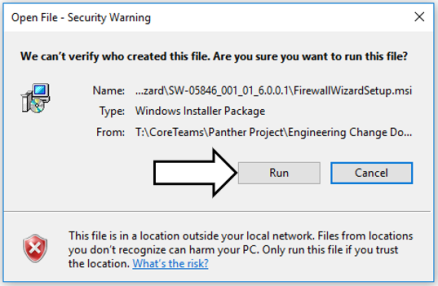
 Click Run on the warning pop-up window, if it appears.
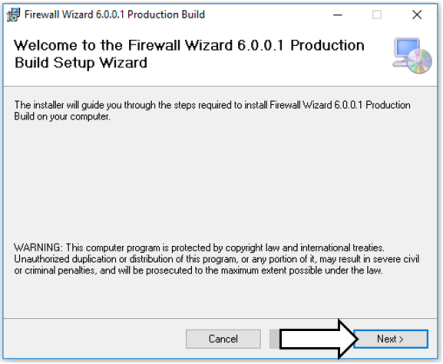
- Click Next> on the Welcome to the Firewall Wizard Screen.
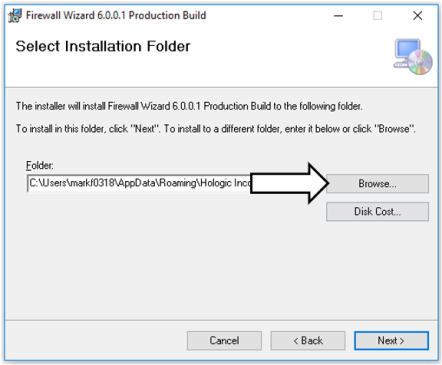
- Select a folder to install the software locally on the laptop.
- Click Next> to continue.
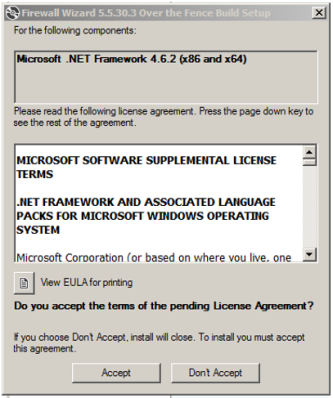
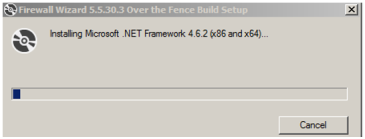
- A pop-up may occur to install Microsoft .NET Framework 4.6.2 (x86 and x64).
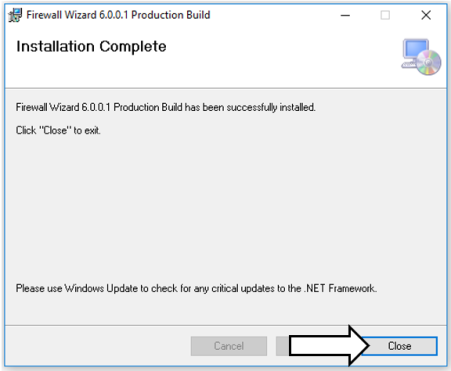
- The Installation Complete page will appear if the software is installed correctly.
- Click Close to exit the Firewall Wizard installation.
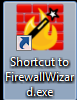
- Verify that there is an icon on your desktop labeled Shortcut to FirewallWizard.exe.
 button at the top of the page to send feedback, comments, or change requests.