Using the Panther System Service Manual
Service Manual Screen Layout
The Panther Service Manual uses a standard WebHelp layout to organize and present information.  The screen is divided into three major sections—the side navigation, the top toolbar, and content pane.
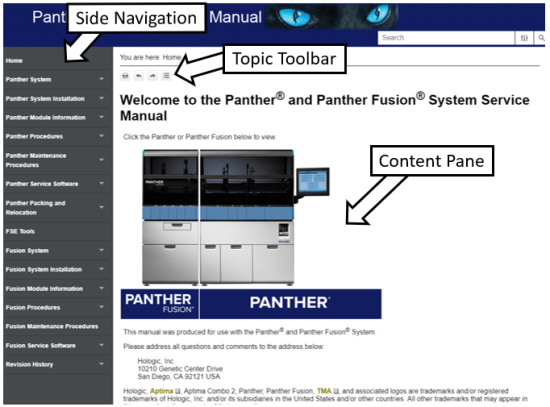
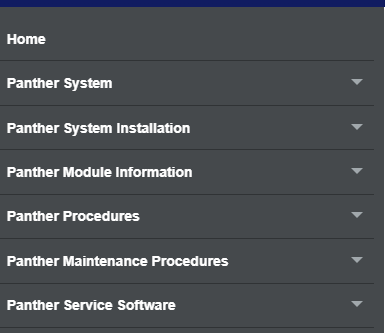
The navigation pane is located on the left side of the screen and provides quick access to the different topics available in the service manual. To open one of the topics click on the title listed.
The top toolbar contains the following icons that help you locate information in the service manual.
| Toolbar Icon
|
Description
|

|
Print—Press to print the topic currently displayed in the content pane. |

|
Collapse All—Press to collapse all image and text togglers on a topic page. |

|
Expand All—Press to display all image and text togglers on a topic page. |

|
Feedback—Press to send feedback, comments, or change request to the Service Manual team. |
The content pane displays the currently selected service manual topic.
A "trail of breadcrumbs" displays at the top of the page. This text string begins with "You are here:" and contains the table of contents (TOC) entries located above the current topic in the TOC hierarchy. Each entry in the breadcrumbs string is an active hyperlink to the corresponding topic.
 button at the top of the page to send feedback, comments, or change requests.