Connecting the UPS to the Panther PC
Purpose
To inform service personnel of the procedure for connecting the EATON 9130 or 9SX2000 110V or 220V to the Panther system using a USB cable.
Parts and Materials Required
- Proper PPE
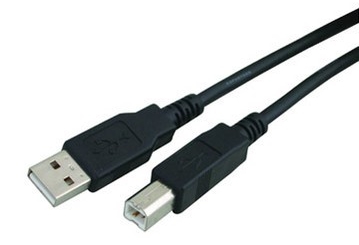
- Any standard USB 2.0 A to B cable.
- A USB 2.0 A to B cable is provided with the EATON 9130 UPS or EATON 9SX2000.
- Optionally, USB Cable, can also be used.
Time Required
- 5 Minutes
Procedure
- Put on proper PPE.
- Complete the Uninterruptible Power Supply (UPS) Installation.
- Shutdown the Panther System and PC.
- Connect the "B" end of the USB cable to the UPS USB port shown below.
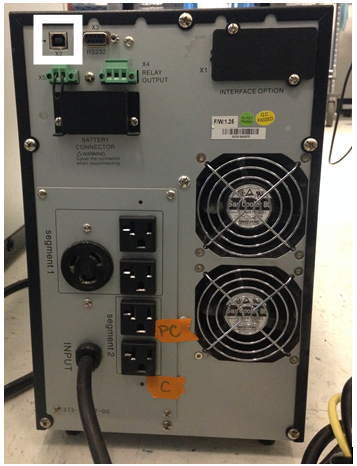
- Connect the "A" end of the USB cable into an open USB port on the Panther PC.
- Power on the Panther System and PC.
- Log in to the Panther FSE Shield.
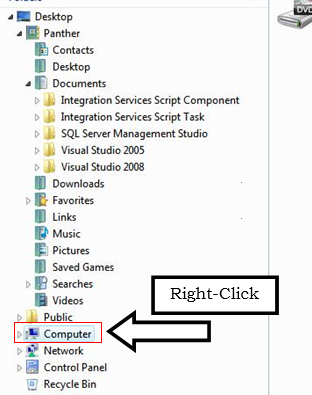
- Open Windows Explorer.
- Right-Click on Computer.
- Select Manage.
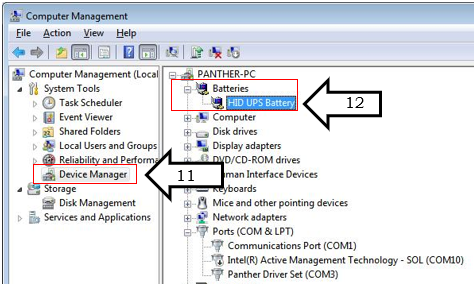
- Select Device Manager in the left-hand pane.
- Verify that HID UPS Battery is displayed.
- Close all open windows.
- Launch Panther Main Software.
- Enable UPS Shutdown.
- Click on the Admin Tab.
- Click on System Configuration.
- Click on UPS Management.
 button at the top of the page to send feedback, comments, or change requests.