Set Sample Handling Configuration to Read Repeat Barcodes
Procedure
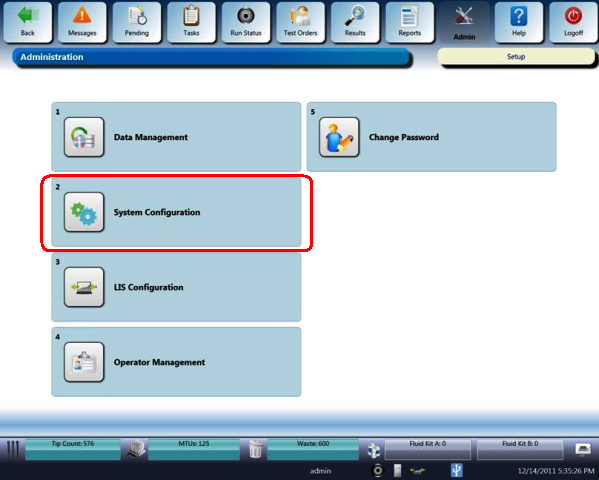
- On any Panther System screen, select the Admin button at the top of the screen.
The Administration screen appears.
 On the Administration screen, select System Configuration.
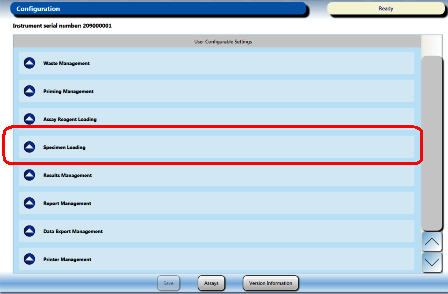
The Configuration screen appears
- Select the Specimen Loading option.
-
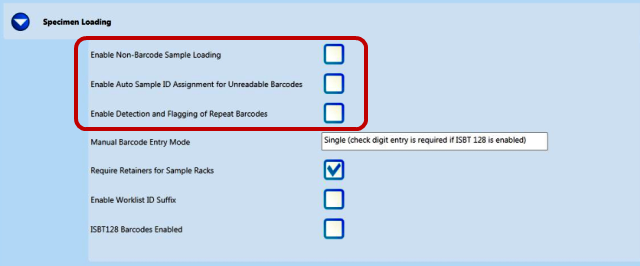
Ensure that Enable Non-Barcode Sample Loading and Enable Auto Sample ID Assignment for Nonreadable Barcodes are not checked. If they are checked, clear the check boxes.
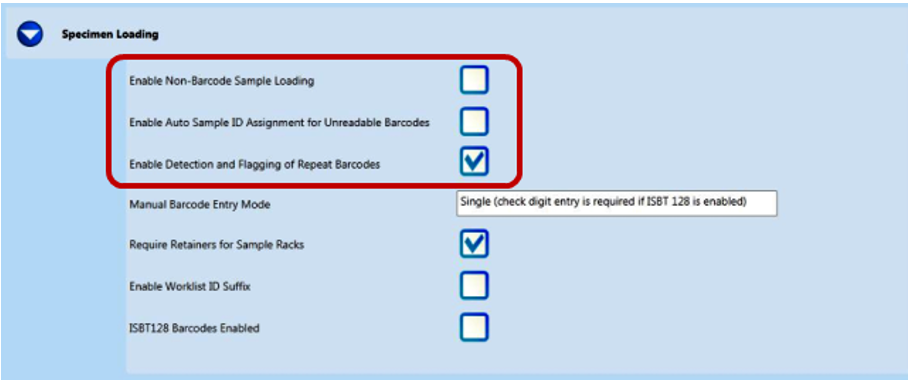
- Select the Enable Detection and Flagging of Repeat Barcodes option box.
- Select Save at the bottom of the System Configuration screen.
 button at the top of the page to send feedback, comments, or change requests.