Skip To Main Content
placeholder
Filter:
All Files
Submit Search
You are here:
Changing the Time Format from 12-Hour to 24-Hour
Parts and Materials Required
None
Time Required
5 minutes
Procedure
Vista
From the
Panther Shield
software screen, select
Windows Explorer
.
Select
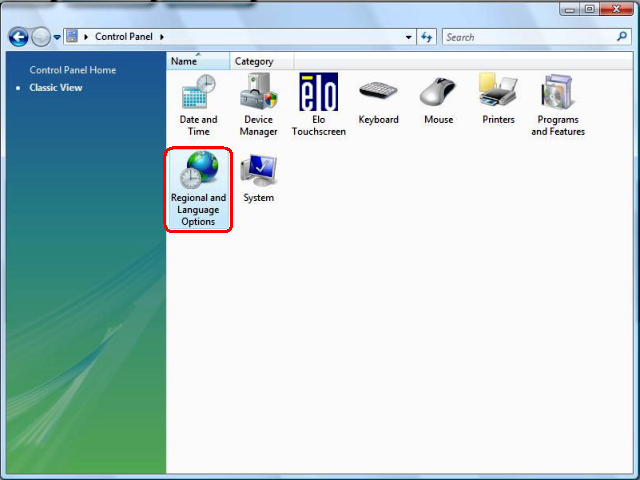
Control Panel
.
Select the
Region and Language Options
icon.
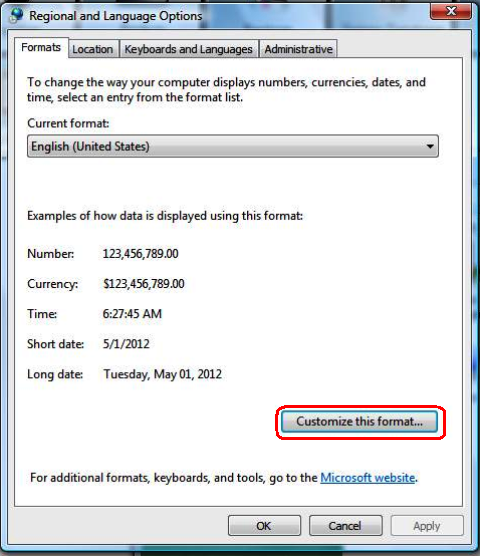
Select the
Customize this format
button.
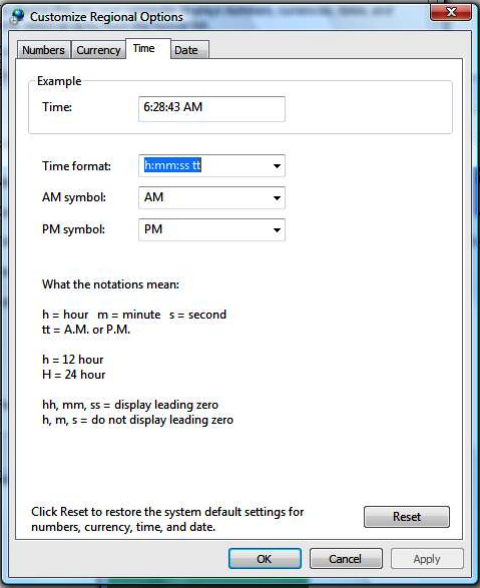
Select the
Time
tab.
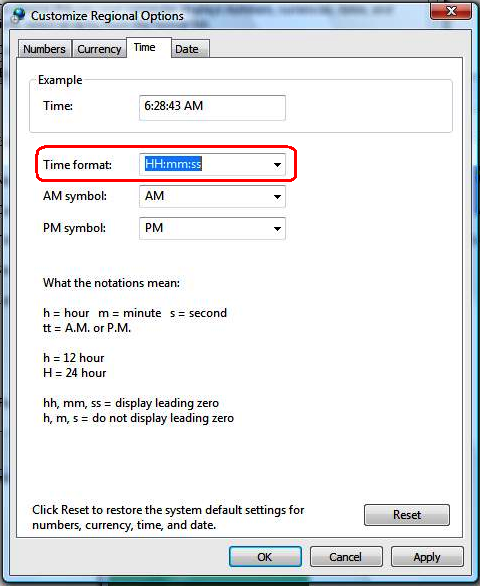
In the
Time
format field, change the clock setting to 24-Hour.
Select
Apply
.
Select
OK
.
Windows 10
From the
Panther Shield
software screen, select
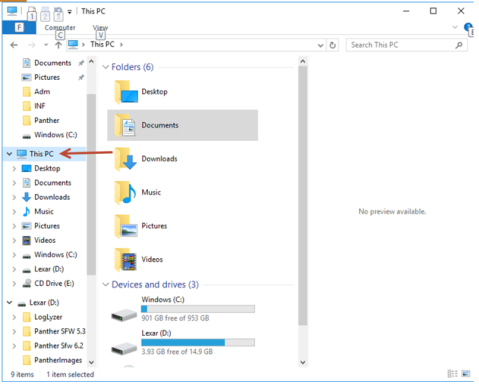
Windows Explorer
.
Right click on This PC.
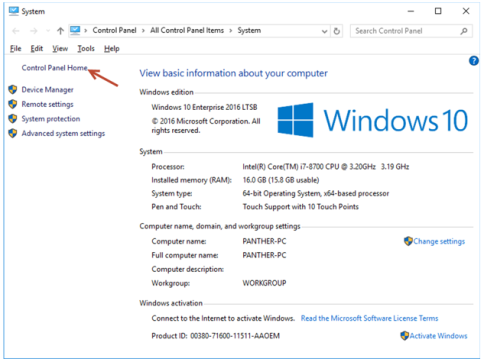
Select Control Panel.
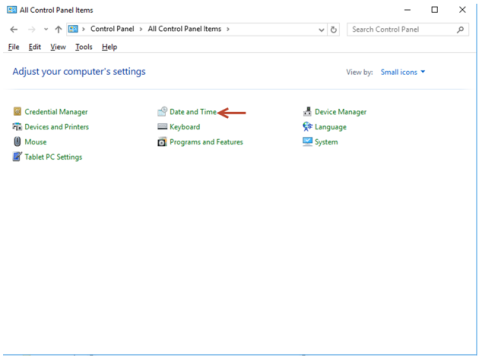
Select Date and Time.
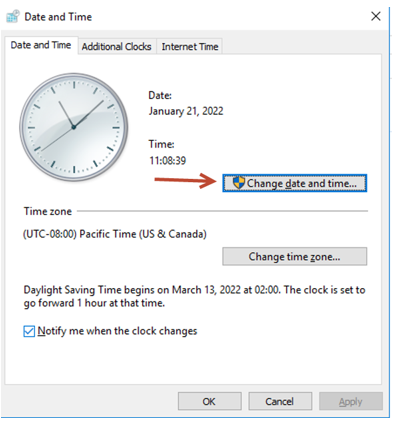
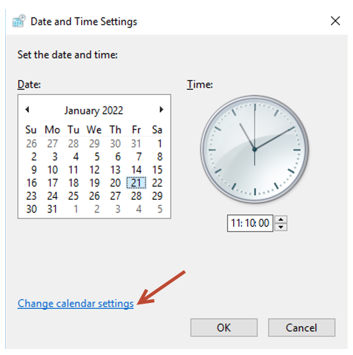
Select Change Date and time.
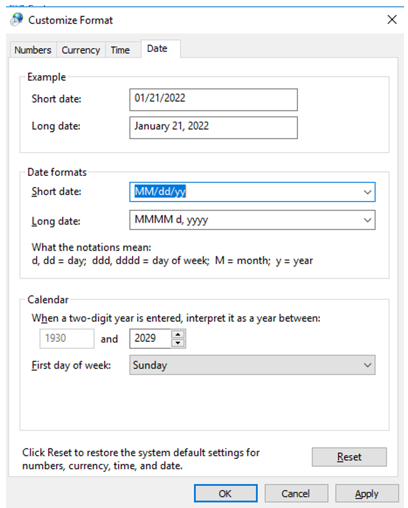
Select Change Calendar Settings.
Use the drop downs for Short Time and Long Time to set the time for a 12-hour or 24-hour clock.
Select
Apply
.
Click the
button at the top of the page to send feedback, comments, or change requests.
 Vista
Vista
 button at the top of the page to send feedback, comments, or change requests.