Perform CRC Verification
NOTE: Make sure the files are unzipped in a different location before performing CRC Verification.
- Download the DiskVerify Application in to your Laptop or PC as needed.
- Log in to Agile PLM from MyHologic.
- Search for 104758-SWMF
- Download 104758-SWMF.zip
- Extract the zip file to access DiskVerify.exe
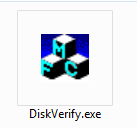
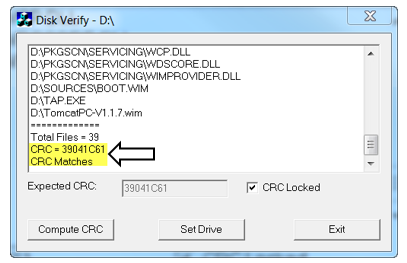
 Run the DiskVerify application.
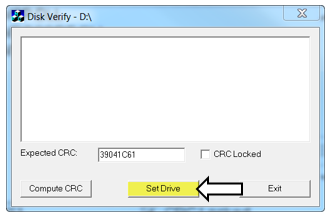
- Type in the CRC # into the Expected CRC field then click Set Drive.
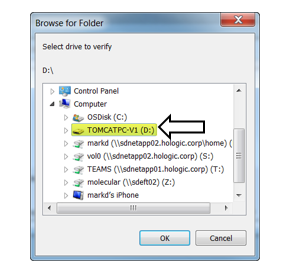
- Select the folder on the USB Thumb Drive, CD, or DVD that contains the downloaded software and click OK.
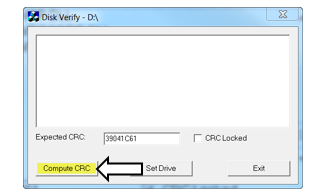
- Click Compute CRC.
- Confirm that the CRC # matches the input CRC #.
- Using the standard Microsoft Windows method, eject the USB Thumb Drive, CD, or DVD from the computer. The USB Thumb Drive, CD, and DVD can now be used to install software on the applicable system.
 button at the top of the page to send feedback, comments, or change requests.