Updating the Luminometer Calibration Factor
via the GUI or Service Software
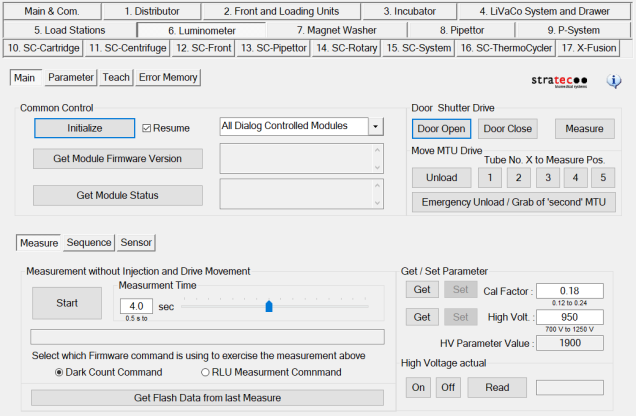
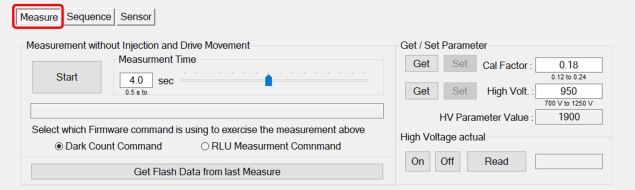
To be within specifications, the Calibration Factor MUST read between 0.12–0.24.
To be within specifications, the Calibration Factor MUST read between 0.12–0.24.
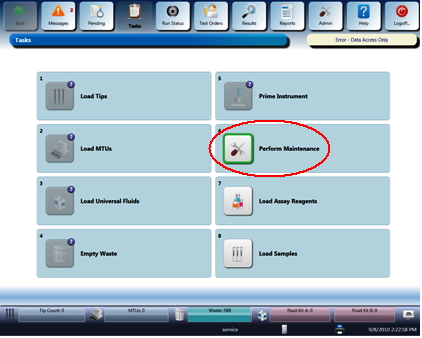
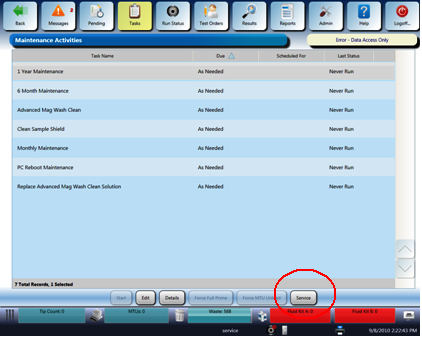
 Updating the Cal Factor via the GUI
Updating the Cal Factor via Service Software
Updating the Cal Factor via the GUI
Updating the Cal Factor via Service Software
Click the  button at the top of the page to send feedback, comments, or change requests.