Dashboard - User Management

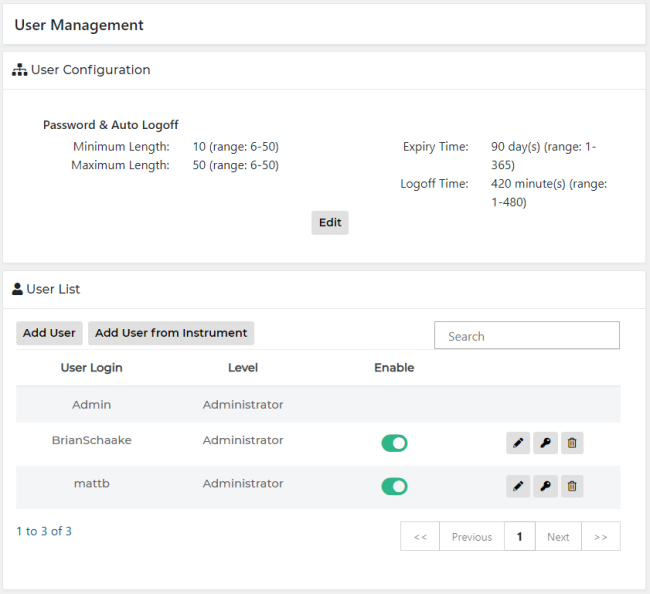
The User Management screen allows users to configure the password length requirement, password expiration period, and inactivity period for auto log-off and to edit the user list.

To access the User Management screen, select Users on the Administration screen.
Role Rights
User

Provides access to the following screens:

  • Home (excluding Plus Sign, Delete, and Edit buttons)
  • Report Request Status (excluding Create, Edit, and Delete Templates)
  • Reflex Test Report
  • My Account
  • About
  • Help
Super User

Provides access to the following:

  • All User Rights
  • All Home screen buttons
  • All Report Request Status screen buttons
  • Administration window buttons
    • Home
    • Features
    • System (excluding Shutdown, Backup, Restore, Certificate Management, Language, and Update Application)
    • Clients
    • Pooling
    • Thresholds
    • Work Cells
Administrator

Provides access to the following:

  • All Super User Rights
  • All Administration screen buttons

ClosedAdd User

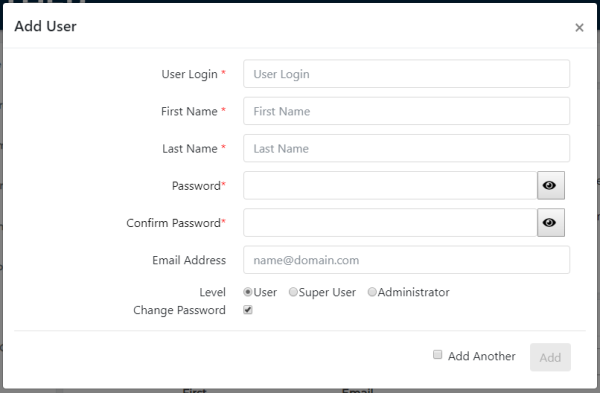
  1. Select Add User.
    The Add User window appears.
  2. Enter user information, select appropriate role, and enable Change Password (if applicable).
    Note—If Change Passwords is selected, the new user must update the password after logging in the first time.
  3. Select Add Another, if applicable.
  4. Select Add.
    Note—If Add Another is selected, the Add User window remains open.

ClosedEdit User

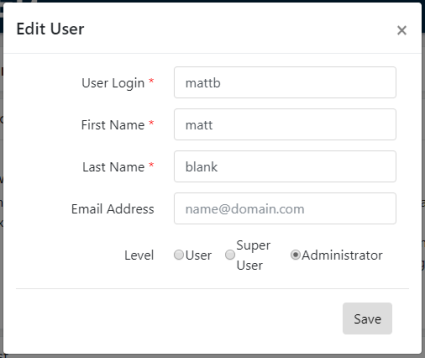
  1. Select Edit.
    The Edit User window opens.
  2. Enter updated information.
  3. Select Save.

ClosedDelete User

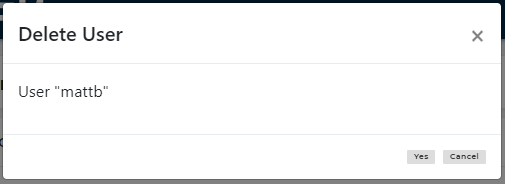
  1. Select Delete.
    The Confirmation window opens.
  2. Select Yes.

ClosedReset Password

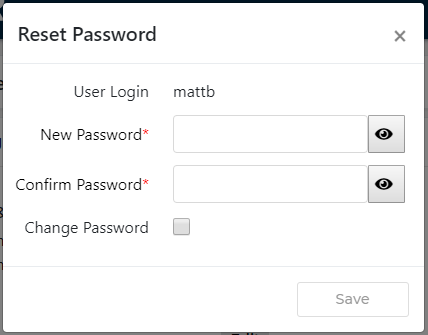
  1. Select Reset Password.
    The Reset Password window opens.
  2. Enter a new password and select Change Password, if applicable.
    Note—If Change Passwords is selected, new users must update their password after their next login.
  3. Select Save.

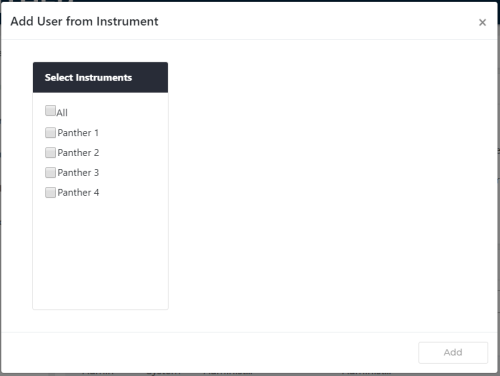
ClosedAdd User from Instrument

  1. Select Add User from Instrument.
    The Add User from Instrument window opens.
  2. Select instrument.
  3. Select Add.
    Note—The Add User from Instrument window lists all failed and successful additions.
  4. Continue to add user names from other instruments, if applicable.
  5. Close window when done.