Panther System Field Service Records
This topic provides instructions for accessing and updating the Field Service Records functionality in the Panther GUI.
This feature allows Field Service Engineers to manually enter the Part Numbers and Serial Numbers of Panther modules replaced in the field.
Procedure

|
Note—The Field Service Records functionality should be used per the Field Service Engineer's discretion. |
Navigate to the Field Service Records Page
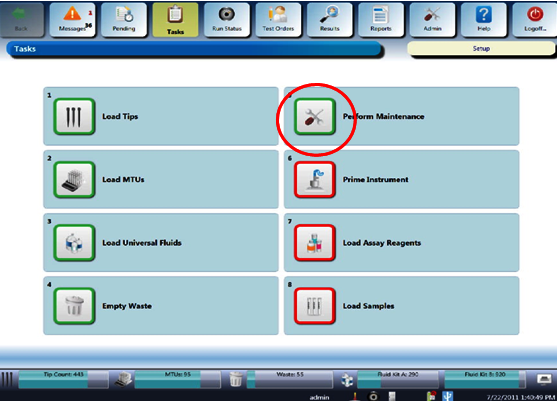
- In the Panther System main assay software, navigate to the Tasks screen.
 Select Perform Maintenance.
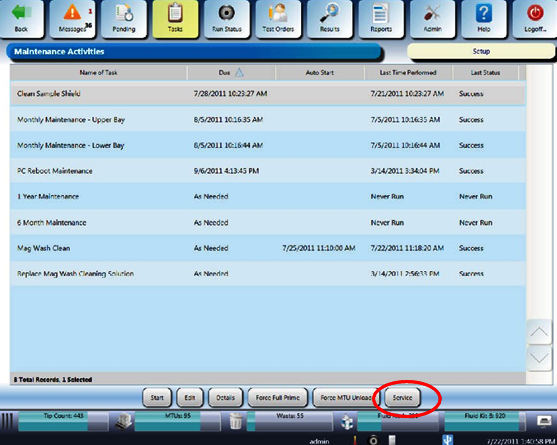
- Select the Service button at the bottom of the screen.
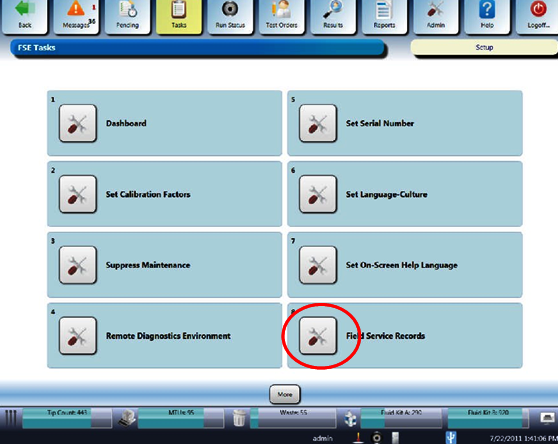
- Select the Field Service Records button at the bottom of the screen.
- The Field Service Records screen appear.
Field Service Records Screen Components
Service Record Components
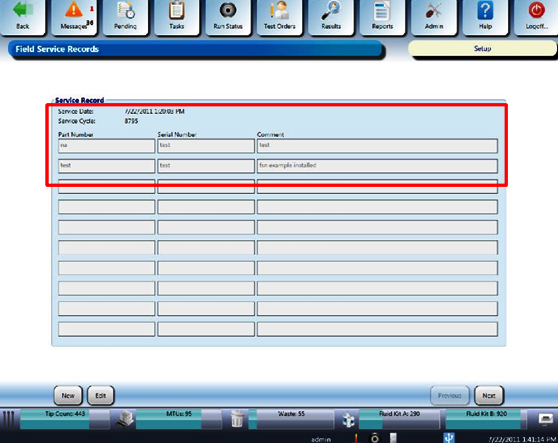
A Service Record includes the following items:
- Service Date and Service Cycle for the service call made by the Field Service Engineer.
- Part Number and Serial Number fields for the modules that were serviced.
- Comment field for additional information or service-related issues.
Service Record Functions
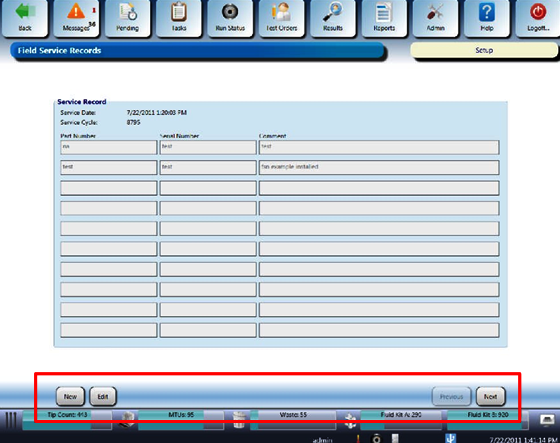
Service Record function buttons located at the bottom of the screen include the following options:
- New—Creates a new service record.
- Edit—Opens an existing service record and allows the fields to be updated.
- Previous—Scrolls to the previous service record in chronological order.
- Next—Scrolls to the next service record in chronological order.
Creating a New Field Service Record
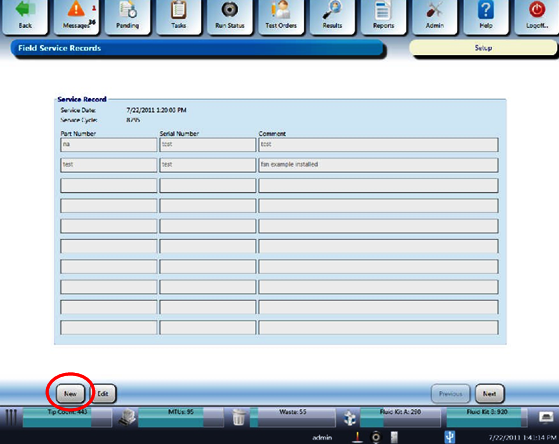
- From the Field Service Records screen, select New.
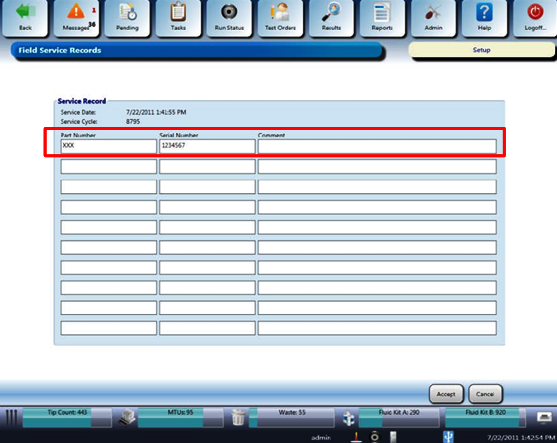
- Enter the Part Number and Serial Number for each module to be replaced. In the following example, Part Number XXX and Serial Number 123456 were created in the first field.
- Select Accept.
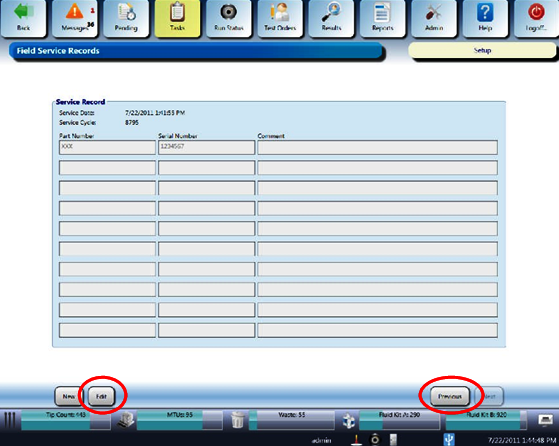
- To view other entries, select Previous, or to update a record, select Edit.
 button at the top of the page to send feedback, comments, or change requests.