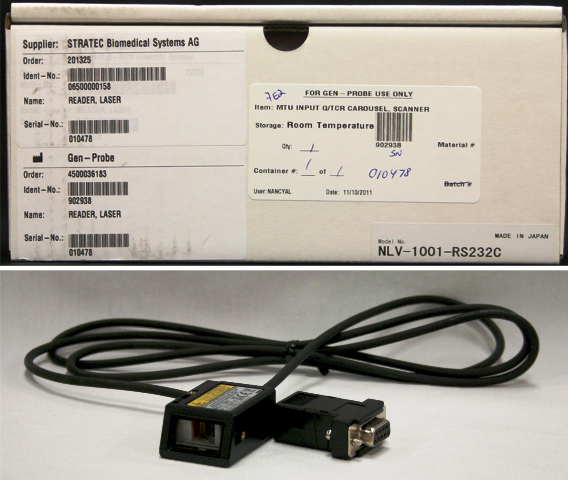
TCR Carousel Scanner Removal and Replacement

|
Laser Warning—This product utilizes internal barcode scanners with visible red laser light. Long term viewing of the laser light could result in eye damage. Never stare into the barcode scanner laser light. This is a Class 2 laser product in accordance to EN 60825-1: 2007 and complies with 21 CFR 1040.10 and 1040.11 except for deviations pursuant to Laser Notice N. 50, dated June 2007. |
Parts and Materials Required
- 1.5 mm ball driver or Allen key
-
Time Required
Removal Procedure
- Put on proper PPE.
- Power down the Panther System.
- Ensure that the Sample Pipettor is out of the way, so that it will not be damaged.
- Unplug the Carousel scanner from the PCB.
- Note the location of the bolt that secures the TCR Carousel scanner head to the bracket. There are three hole locations. Note the hole location that the bolt is in.
- Using a 1.5 mm ball driver or Allen wrench, remove the two bolts that secure the TCR Carousel scanner head to the bracket.
- Remove the TCR Carousel scanner.
Replacement Procedure
 Coil the excess cables from the TCR Carousel scanner and place the coils in the clip. Leave just enough slack on the cable so that the TCR Carousel scanner head can be attached to the bracket and the TCR Carousel scanner plug will reach the PCB.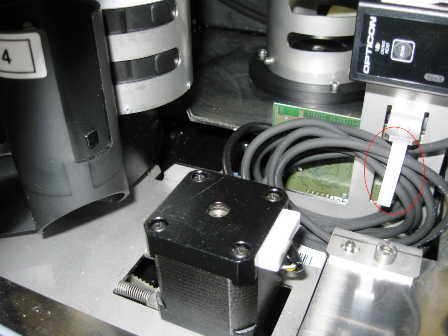
- Using the 1.5 mm ball driver or Allen key, insert and tighten the two bolts that secure the TCR Carousel scanner head to the bracket. Use the same hole position noted in Step 5 of the removal procedure.
 | Note—The hole position is important for obtaining the correct focal length for the scanner |
- Plug the TCR Carousel scanner cable into the PCB.
- Power on the Panther System.
Verification
- Load customer TCR bottles in each of the four TCR locations with the barcodes properly oriented.
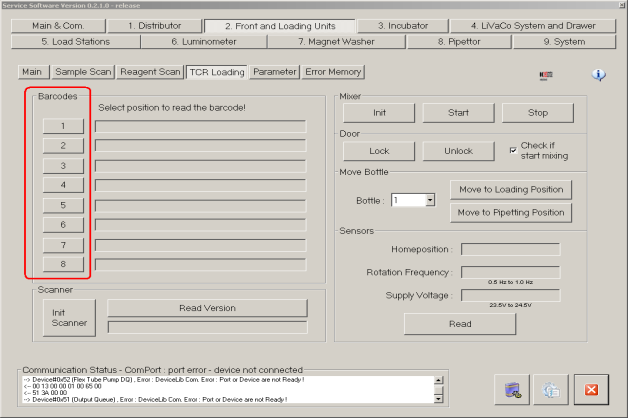
- Open Service Software and initialize the TCR carousel.
- Go to the Front and Loading Units tab and click on the TCR Loading button.
- Click on 1, 3, 5, and 7 under the barcodes section to test that the barcode scanner properly scans each of the locations.
- If customer uses TER bottles, load the bottles in each of the four TER locations with the barcodes properly oriented.
- Click on 2, 4, 6, and 8 under the barcodes section to test that the barcode scanner properly scans each of the locations.
- Repeat Steps 4 and/or 6 at least three times
Click the  button at the top of the page to send feedback, comments, or change requests.