Data Sharing Setup

The Data Sharing feature allows up to 16 Panthers to share data.

Prerequisites

  • Must be on System SW v7 or higher
  • Firewall 5506-X must be configured for Data Sharing

Procedure

Note—
If a Panther System in a Data Sharing Group needs to have its software upgraded, the System MUST be removed from its Data Sharing Group before upgrading.

Note—
For customers on HSCN (UK NHS Network Only) running Remote Diagnostics while in a Data Sharing Group: ALL Systems in the Data Sharing Group MUST have the HSCN (N3) Remote Desktop Protocol installed.

Note—
If a PC in a Data Sharing Group needs to be re-imaged, the PC MUST be removed from its Data Sharing Group before re-imaging.

Reimaging MUST follow these steps in order:

  1. If tests are to be retained after re-imaging backup the Database.
    Tests that were not backed will be lost.
  2. Remove the instrument from its data sharing group
  3. Re-Image
  4. Install All applicable SW
  5. If database was backed-up, restore the database from Step 1.
  6. Run Instrument Setup
  7. Add instrument to Data Sharing Group

Note—

When adding a Panther to a Data Sharing group, that Panther MUST be in the Setup state.

The process of joining a group cannot complete unless the Panther to be joined is in the Setup state.

If the Panther to be added is not in the Setup State, that Panther will go to Data Access Only mode.

If this occurs, restart the Panther and ensure it is in the Setup state.

Note— Enabling Data Sharing will pull in user account information, valid reagent kits, and any master lots that may be needed for the kits.

Note— Once a group is joined, all historical data (including results) residing in the database cannot be accessed.

In order for the customer to access any data generated prior to joining a group, they must first disable data sharing.

Note—
All data generated while in a data sharing group can only be accessed while the Panther is a member of that group.

If the Panther leaves the group, that data can no longer be accessed, including results.

The Panther must rejoin the group in order to access any generated data.

ClosedEnabling Data Sharing in the Panther GUI
  1. Power on the Instrument and PC.
  2. Log in to the Panther GUI
  3. Enable Data Sharing
    1. Navigate to Tasks > Perform Maintenance > Service > Panther Link Features > Enable Data Sharing
    2. Shutdown and Restart the Panther GUI.

ClosedCreate a Data Sharing Group

  1. Power on all Panther Systems and PCs.
  2. Log in to the Panther GUI
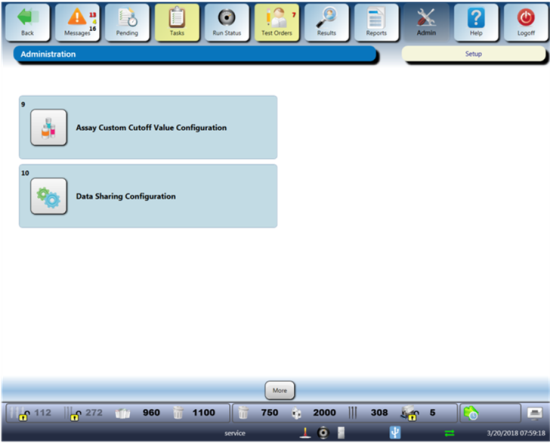
  3. ClosedNavigate to Admin >> Data Sharing Configuration.

  4. Click on Data Sharing Configuration icon.
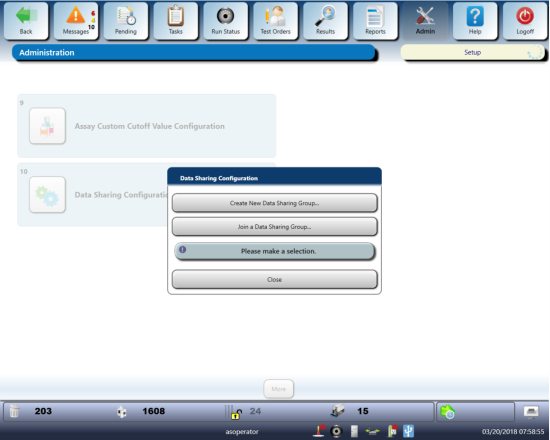
    1. ClosedThe screen below will appear.

  5. Select Create New Data Sharing Group.
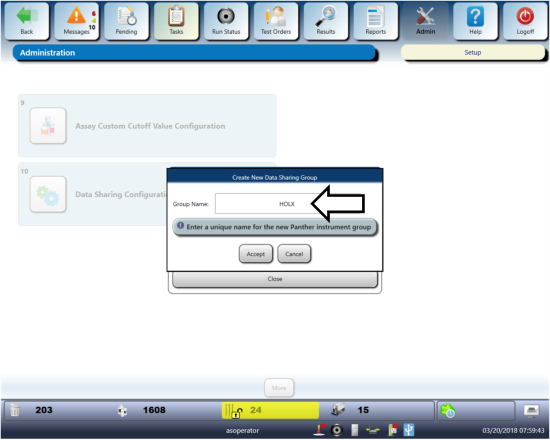
  6. ClosedCreate a New Group Name.

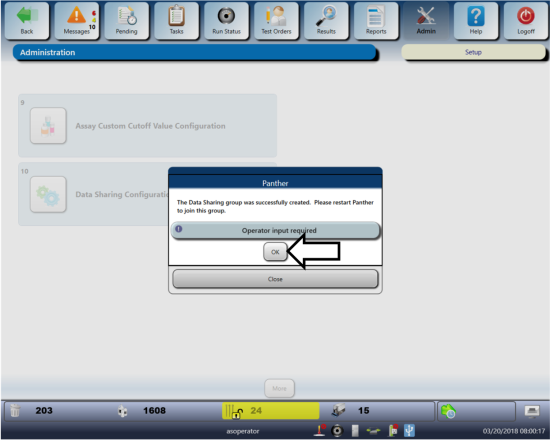
  7. ClosedRestart the Panther to create the Data Sharing Group.

ClosedJoin a Data Sharing Group

  1. Log in to the next Panther's GUI.
  2. ClosedNavigate to Admin >> Data Sharing Configuration.

  3. Click on Data Sharing Configuration icon.
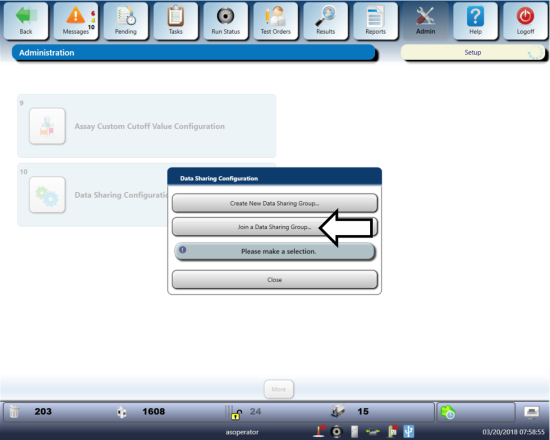
    1. ClosedThe screen below will appear.

  4. ClosedSelect Join a Data Sharing Group.

  5. Select desired Data Sharing Group from the list.
  6. Click Join.
  7. The system will require a restart.
  8. Repeat 1-4 for all remaining Panther Systems.