Dashboard Server Imaging

Parts and Materials Required

  • Server, LOGIC SUPPLY HLGC-ML450G-51 [CMP-01661]
  • Rufus Software v3.5 [SW-05850] - MUST use software from BOX or AGILE
    Do NOT use Rufus downloaded from the Interwebs
  • For Hologic FSEs use: 
    Diagnostics Dashboard Command, Image Software
    refer to the applicable Software Install TB for the correct Part Number

    OR
  • For GRIFOLS FSE use:
    Blood Bank Dashboard, Image Software
    refer to the applicable Software Install FSB for the correct Part Number

Time Required

  • 1 Hour

Procedure

Note— Screen shots below are for reference ONLY.
Note— When removing a USB Drive always remember to use the “Safely Remove” icon.
Note— The FSE Laptop user MUST have Administrator privileges.
  1. Download and Install Rufus onto the FSE laptop.
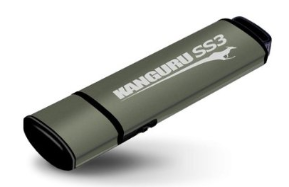
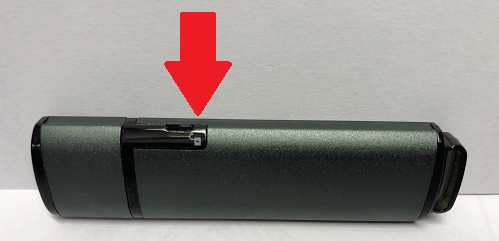
  2. ClosedSet the Kanguru SS3 USB Flash Drive lock to the UNLOCKED position.

  3. Insert a blank Kanguru SS3 USB Flash drive into the Laptop.
  4. ClosedClear USB Partitions (if any)
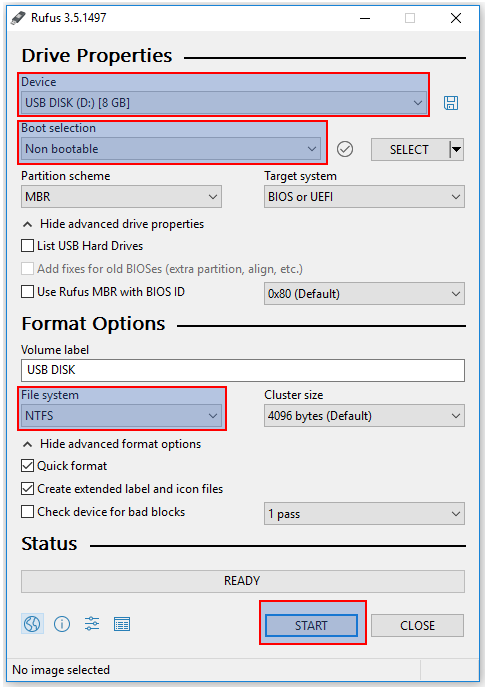
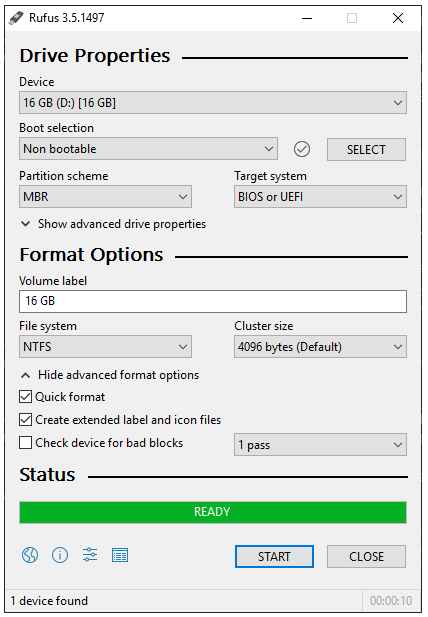
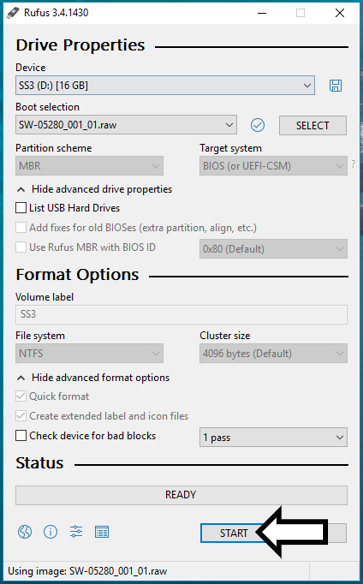
    1. Launch Rufus and select the following settings:
    2. Device: Select the desired USB to write to; select the visible partition on the USB drive
    3. Boot Selection: Set to Non bootable
    4. File System: Set to NTFS
    5. ClosedClick START

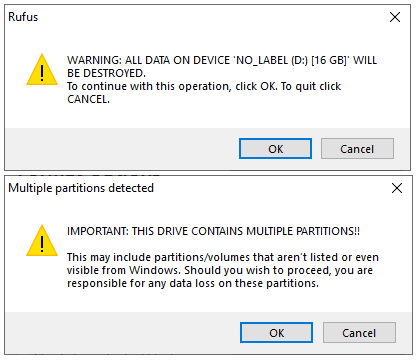
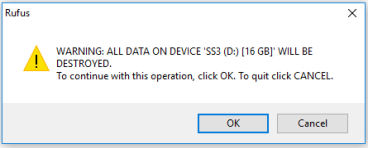
    6. ClosedClick OK when/if the pop-ups shown below appear.

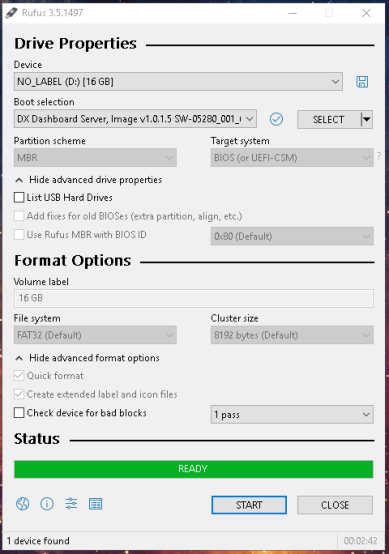
    7. ClosedRufus will display READY status when completed.

  5. ClosedCreate a Bootable USB Drive that includes the Dashboard Image.
    1. Launch Rufus
    2. From the Device drop down menu, select the desired USB to write to.
      Rufus will auto select removable drives.
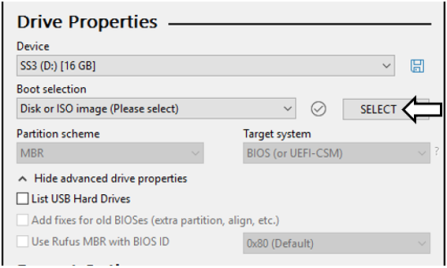
    3. ClosedClick the SELECT button to locate the Image File.

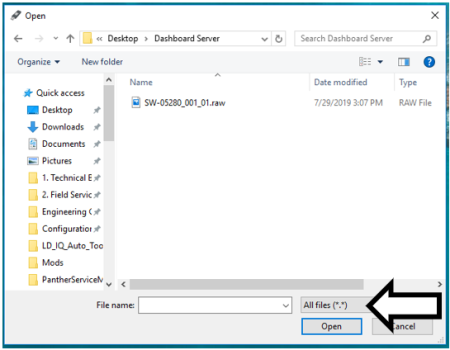
    4. Navigate to the folder containing the Dashboard Image file.
    5. ClosedSelect "All Files (*.*)" from the lower right drop-down menu.

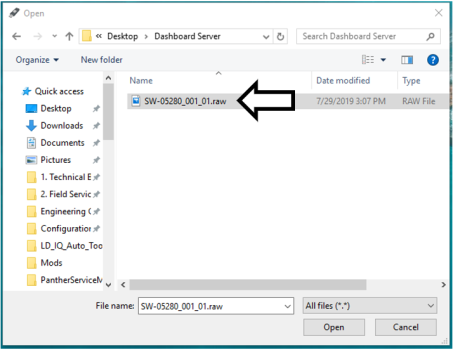
    6. ClosedSelect the Dashboard Server Image .raw file and click Open.

      Note—
      Rufus will automatically select the partition scheme and target system.
      DO NOT CHANGE these settings.
      Note—
      The Volume Label cannot be edited when creating a bootable drive from a .raw image.
      This will be edited in Windows Explorer after USB Image creation is complete
      Note— Ignore all grayed out sections in Rufus
    7. ClosedClick the START button to burn the Dashboard Server Image to the USB drive.

    8. ClosedClick OK when the pop up shown below appears.

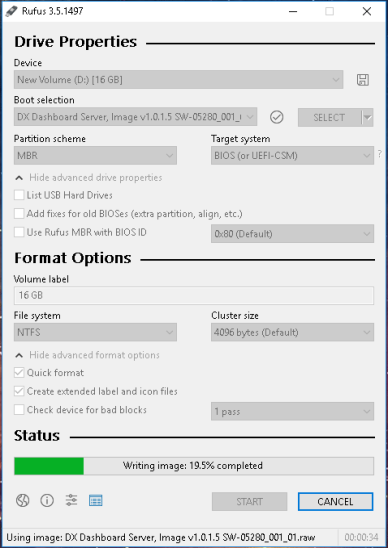
    9. ClosedImage Creation will begin. Image Creation should take less than 5min

    10. ClosedRufus will display READY when complete.

    11. Close Rufus.
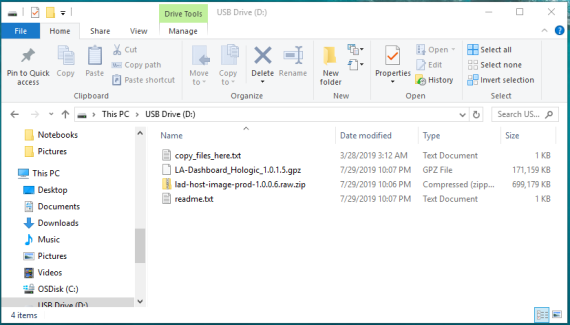
  6. ClosedVia Windows Explorer, verify that the 4 files below are listed in the USB drive.
    Note—
    When in Windows Explorer, ensure Drive Letters "D" to "G" are unassigned.
    The newly created USB drive will have two partitions.
    Windows will NOT display the Linux Partition created in the previous steps.
    The Windows partition will contain the files listed below.

  7. ClosedImage the Dashboard Server.
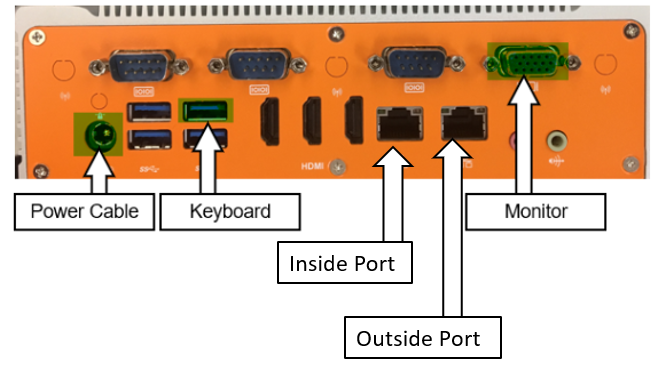
    1. ClosedPlug in the power cable, a monitor, and a keyboard into the Dashboard PC.

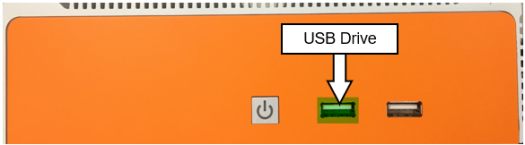
    2. ClosedInsert the USB Drive with the image.

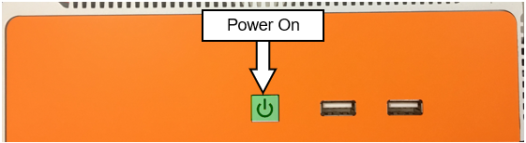
    3. ClosedPower on the Dashboard Server PC.

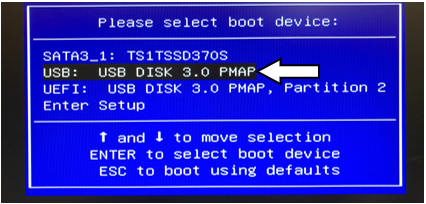
    4. ClosedPress F11 to bring up the boot menu.
      Note—
      Ignore any startup errors that appear.
      This is normal as the USB drive's boot partition is mounted as read-only.
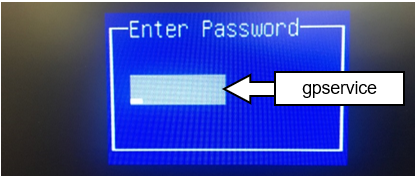
      1. ClosedIf asked for a Password, enter gpservice or !L@8@ut0.

      2. ClosedHighlight the USB: option using the arrow keys.

      3. Hit Enter.
      4. If the GRUB/Ubuntu boot menu appears, Hit Enter again.
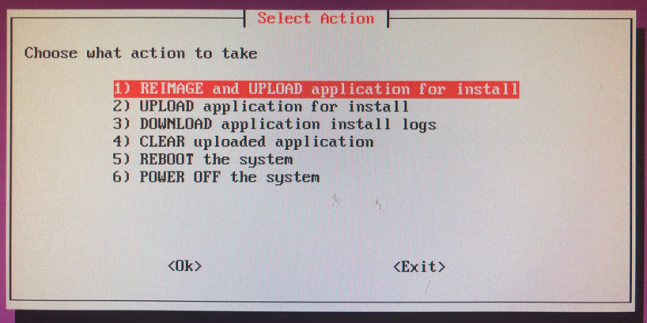
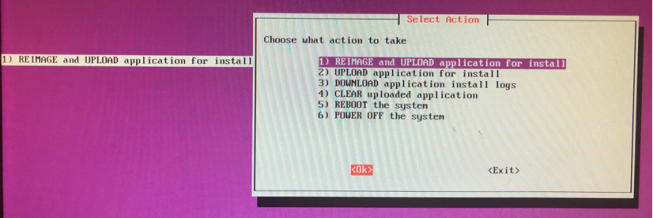
    5. ClosedUse the arrow keys to select REIMAGE and UPLOAD application for install. Screen shots below are for reference only.

    6. ClosedHit Tab until the <Ok> button is highlighted and hit Enter.

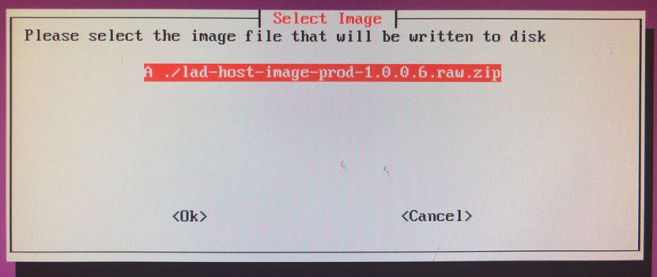
    7. ClosedSelect the Image. The file will be .raw.zip file.

    8. Hit Tab until the<Ok> button is highlighted and hit Enter.
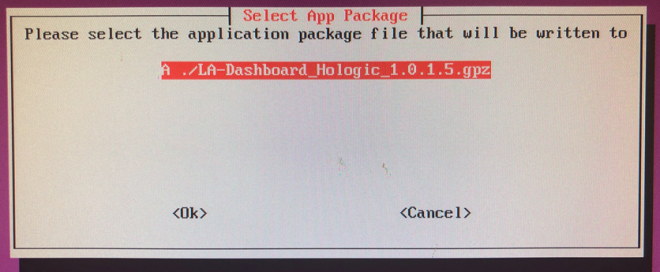
    9. ClosedSelect the application package file.
      The application package is the actual Panther Dashboard software.

    10. Hit Tab until the cursor is on <Ok> and hit Enter.
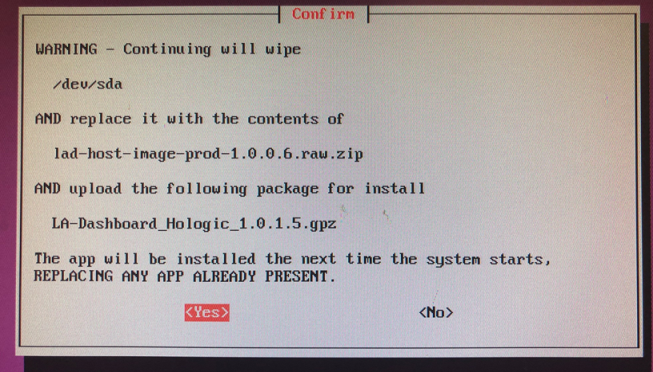
    11. ClosedA Warning message will appear.
      Hit Tab until the<Yes> button is highlighted and hit Enter.

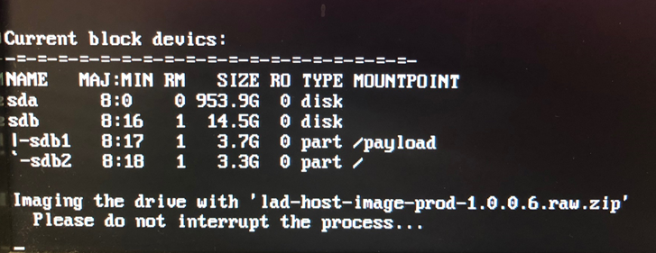
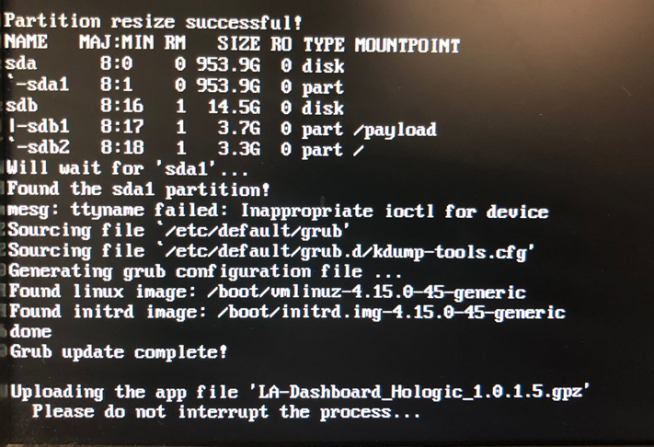
    12. ClosedThe following screens will display the progress of the Image and App deployment.

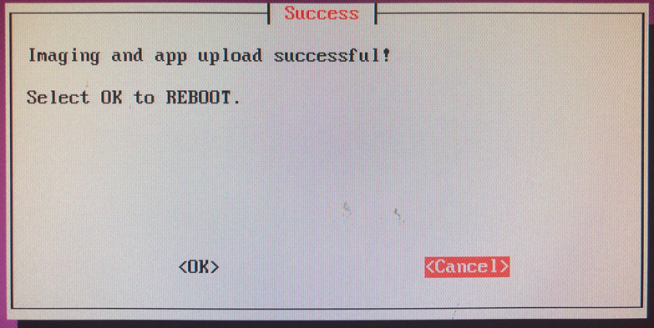
    13. ClosedOnce complete the following screen will appear.
      Hit Tab until the<Ok> button is highlighted and hit Enter.

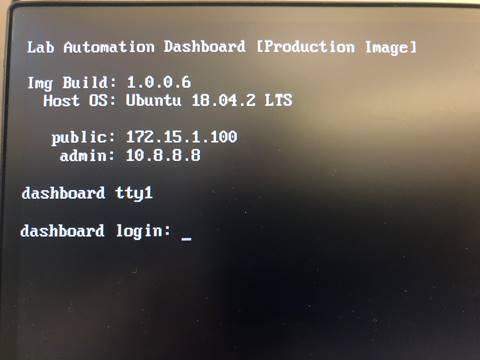
    14. ClosedThe procedure is complete when the screen below is displayed.