Adding a Panther to Lab Automation Dashboard
- Ensure that the Panther Link Dashboard Feature is Enabled.
- Log in to the Panther Main as an Administrator on the Panther.
- Navigate to Administrator.
- Click the Next button until Manage Remote Data Access and click the button.
- The Manage Remote Data Access page will appear.
- Click the Generate button.
- A generate access pop-up will appear with a text box for Owner.

Note—Type in an owner that you can use as a key to remember in the following steps. WRITE THIS OWNER DOWN. - Click the OK button.
- A pop-up window will appear with a unique randomly generated access key to populate within the Dashboard Server.

IMPORTANT—WRITE THIS KEY DOWN OR TAKE A PICTURE. This key will not be remembered by the system and will be lost after the window is closed. - Log in to the Dashboard Server as an FSE.
- Select the Menu button in the top right of the Dashboard.
- Select the Administration button.
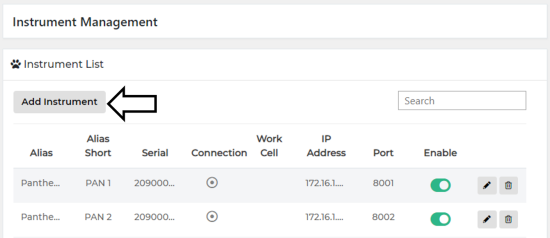
- Select the Paw icon or Instrument Management tab.

 Select Add Instrument on the Instrument Management Page.
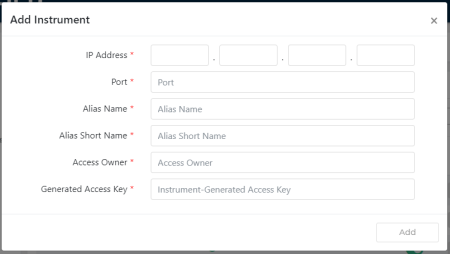
- A pop-up window labeled Add Instrument will appear.
- Populate the IP Address of the Panther that you generated the unique key from Step 9.
- Populate the designated Dashboard Port number generated from the output.
- Populate the Alias Name with a generic name fro the Panther you wish to add.
- This may be anything, the customer may want to name their instrument.
- i.e. Bubbles or 2090002345
- This may be anything, the customer may want to name their instrument.
- Populate the Alias Short Name with a generic name for the Panther you wish to add.
- This may be anything, the customer may want the name to appear shorter. This will be used in the card view layout.
- i.e. Bub or 2345
- This may be anything, the customer may want the name to appear shorter. This will be used in the card view layout.
- Populate the Access Owner that you wrote into the Panther during the access key generation procedure.
- Populate the Generated Access Key with the key generated from the Panther during the access key generation procedure.
- Click the Add button.
 button at the top of the page to send feedback, comments, or change requests.