Downloading Software from Agile
Parts and Materials Required
- Hologic-issued computer with USB port
- USB Thumb Drive, (16 GB minimum capacity)
- CD/DVD writer (if not available on the Hologic-issued computer)
- DiskVerify (P/N 104758-SWMF)
- Writable CD or DVD
Time Required
- Varies by file size and CRC check
Additional Information
- Diagnostic Software is released in the Agile Product Lifecycle Management (PLM) system.
- Software will be a group of files or bundled into a .zip file.
- Software can be downloaded from Agile to sites such as a SharePoint, the Teams Drive, BOX-Cloud File Storage, or an EFT site.
- It is the FSE's responsibility to download and install the correct SW as per the appropriate installation TB.
- A Cyclic Redundancy Check (CRC) or Secure Hash Algorithm (SHA) MUST be performed on ALL downloaded SW.
- A CRC/SHA will validate that the correct software has been downloaded prior to installation.
- CRC/SHA numbers will be listed in the associated installation TB.
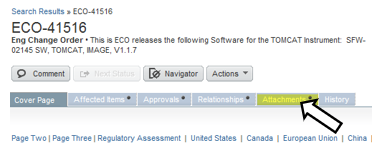
- CRC/SHA numbers can also be found in the ECO package.
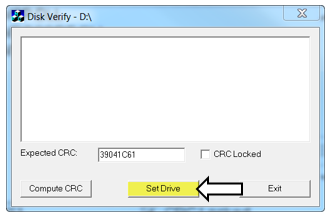
- The DiskVerify tool MUST be used to confirm CRC accuracy.
- The DiskVerify application only scans folders. It does not scan individual files.
- A SHA 256 check MUST be performed to verify SHA values
- The SHA 256 values will be listed in the applicable Software Install TB
- The SHA 256 values will be listed in the applicable Software Install TB
- SW that has a .gpz extension do NOT require a CRC by the DiskVerify application after downloading.
- The system will check to make sure the .gpz file has not been corrupted.
- Some .gpz files are embedded in .zip files. Not all of these .zip files will have a CRC number associated with it.
Procedure

|
Note—Screenshots are for reference only and may vary by software version. |
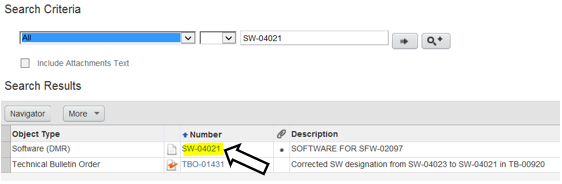
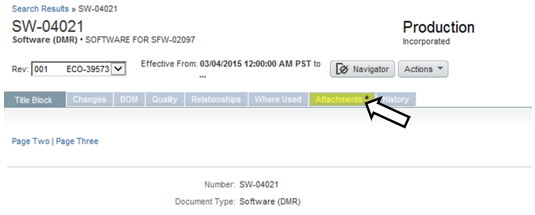
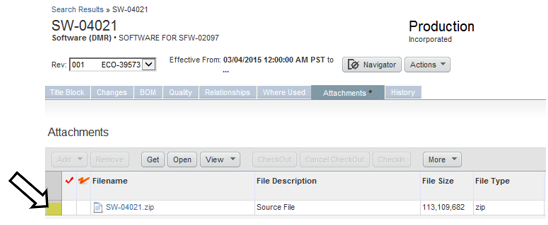
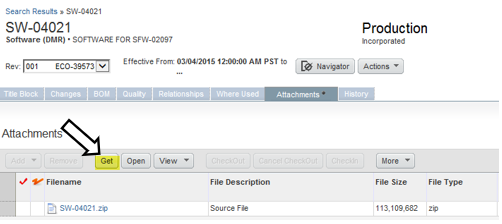
 Part A: Download Software from the Agile PLM System



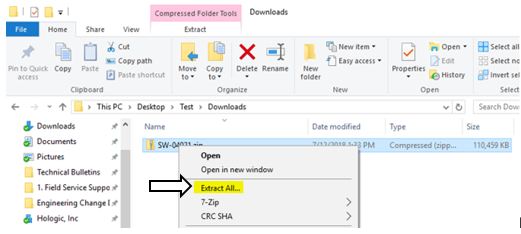
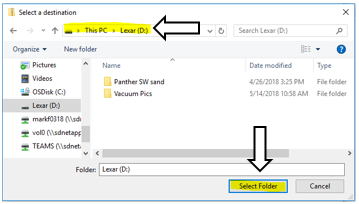
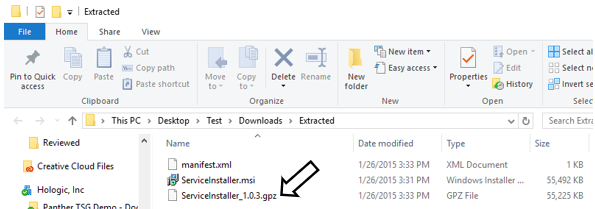
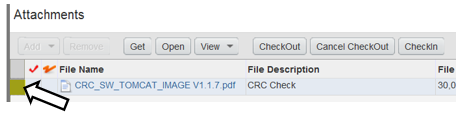
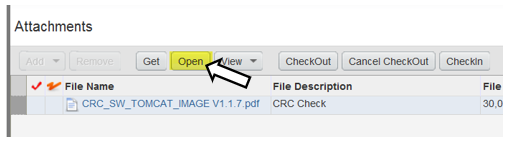
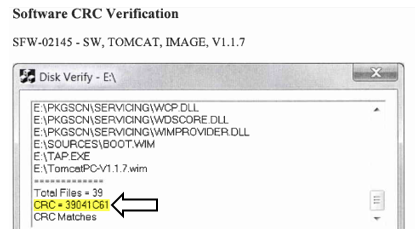
Part B: Obtaining CRC # from the Agile PLM System
NOTE: The CRC Number and information can be found in the related TB.

Part C: Perform CRC Verification
NOTE: Make sure the files are unzipped in a different location before performing CRC Verification.

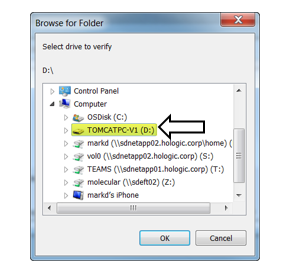
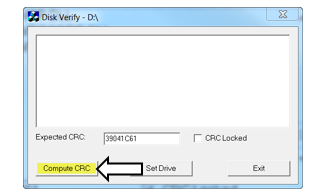
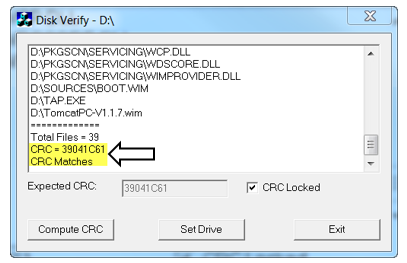
Verification
- Once the CRC is check with the DiskVerify application, the USB Thumb Drive, CD, or DVD can be re-used to install the software on other systems.
NOTE: The DiskVerify application must be used to verify the CRC on the USB Thumb Drive, CD, or DVD before installing the software again on another system.
 button at the top of the page to send feedback, comments, or change requests.