Creating an Administrator Account in Panther System Software
Parts and Materials Required
- None
Time Required
- 5 minutes
Procedure
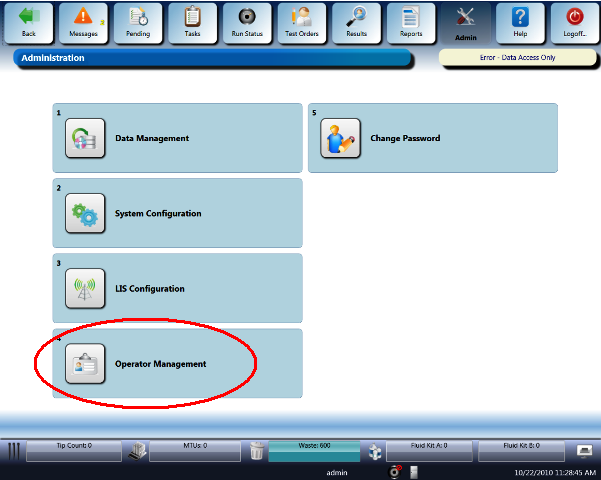
- Select the Admin button at the top of the screen.
The Administration window opens.
 Select Operator Management.
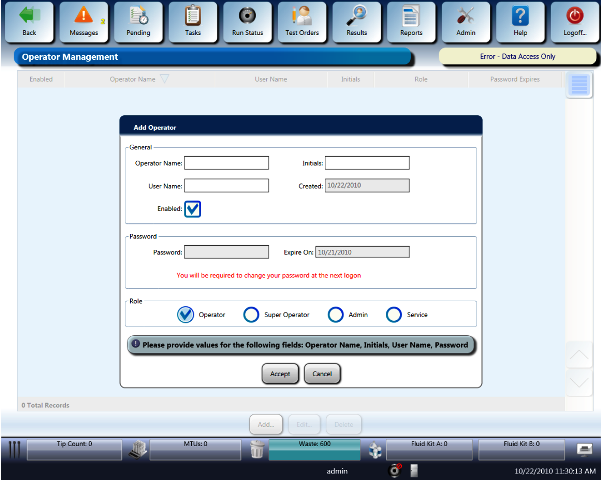
Three options appear at the bottom of the screen.
- Select Add.
- First, create an Administrator account:
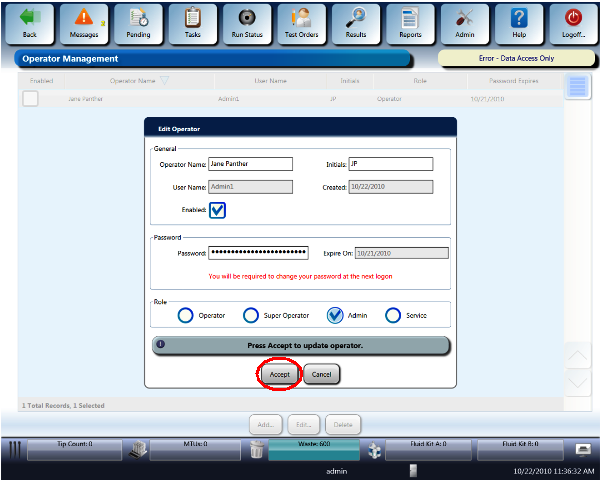
- In the Role field, select Admin.
- Complete all remaining fields.

NOTE—Select a generic password. The Administrator will be prompted to change the password upon their first log on. You will be asked to re-enter the password after entering it. - Ensure that the checkbox next to Enabled is selected.
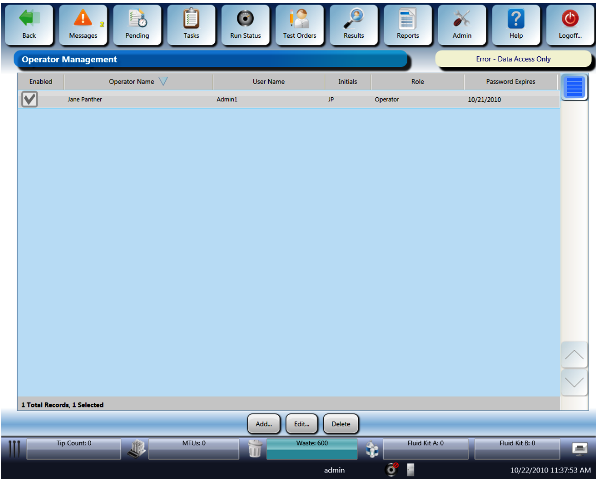
- Select Accept to create the account.The account should now appear on the Operator Management screen.
- Allow the Administrator to create the remaining accounts.
- Perform other SW changes and configurations, then restart the Panther Main SW.
- When steps are complete, ensure that Service mode has been disabled by holding down the Shift key and F10.
- If this is an installation, continue to Panther GUI Software Configuration.
 button at the top of the page to send feedback, comments, or change requests.